
My Claude Code Plugin Marketplace Is Now Public. Install Session Metrics Skill Plugin
centminmod/claude-plugins is live. One marketplace add, one plugin install, and the session-metrics skill auto-triggers the moment you ask Claude Code how much a session cost

In this post:
What got published
Two GitHub repos got updated this week. centminmod/claude-plugins is a Claude Code plugin marketplace that went public and centminmod/my-claude-code-setup is a personal-configuration starter that bundles the same skill for direct copy. Updated: created a dedicated Claude Code plugin marketplace page.
The marketplace is currently one plugin wide. That plugin is session-metrics skill - a token usage cost analyzer I built across 19+ development sessions over three weeks. I created this skill so that I could have insights into Claude Code models’ tokens and cost usage at both the project level and also at the individual chat session level. There are still some Claude Code users reporting having hit their 5-hour session limits prematurely, and I’m always curious how their patterns of usage differed from mine. You can read how I use Claude Code here. So I’m hoping this session-metrics skill becomes a useful tool for others as well.
There’s been many updates to session-metrics skill the full change log is here. Some recent highlights:
v1.22.0 added 9-category turn waste classification — every assistant turn is labelled as productive, retry error, file re-read, verbose edit, dead end, cache payload, extended thinking, subagent dispatch, or normal. The dashboard shows a stacked-bar distribution chart and drill-down cards per waste category.
v1.23.0 extended the per-turn drawer with a “Turn Character” section: a colour-coded classification label (amber for risk, green for productive) and a one-sentence explanation derived from that turn’s actual data — the specific re-read filenames, exact cache percentages, thinking block counts, etc.
v1.24.0 refined the file re-read classifier: subagent-boundary re-reads (when a new subagent starts fresh after a model switch) are now shown as informational rather than wasteful, and the first access in any context segment is no longer incorrectly flagged.
I’ve covered the design and the demo findings in companion posts already:
I Built a Token Cost Analyzer for Claude Code. Here’s What I Found
I Ran Two 5-Hour Opus 4.7 Blocks in One Day. Here’s the Full Token Breakdown
Claude Opus 4.6 vs Opus 4.7 Effort Levels And Prompt Steering Benchmarks
This post is the release note. It tells you what to type to get it.
Before the marketplace existed, sharing a Claude Code skill meant one of two things. Either I pointed people at my-claude-code-setup and asked them to cp -r .claude/skills/session-metrics ~/.claude/skills/, or I handed them the repo and they took a copy that went stale the moment I pushed the next fix. Neither route had versioning. Neither route had auto-updates. And neither route survived me renaming a flag or bumping the pricing table.
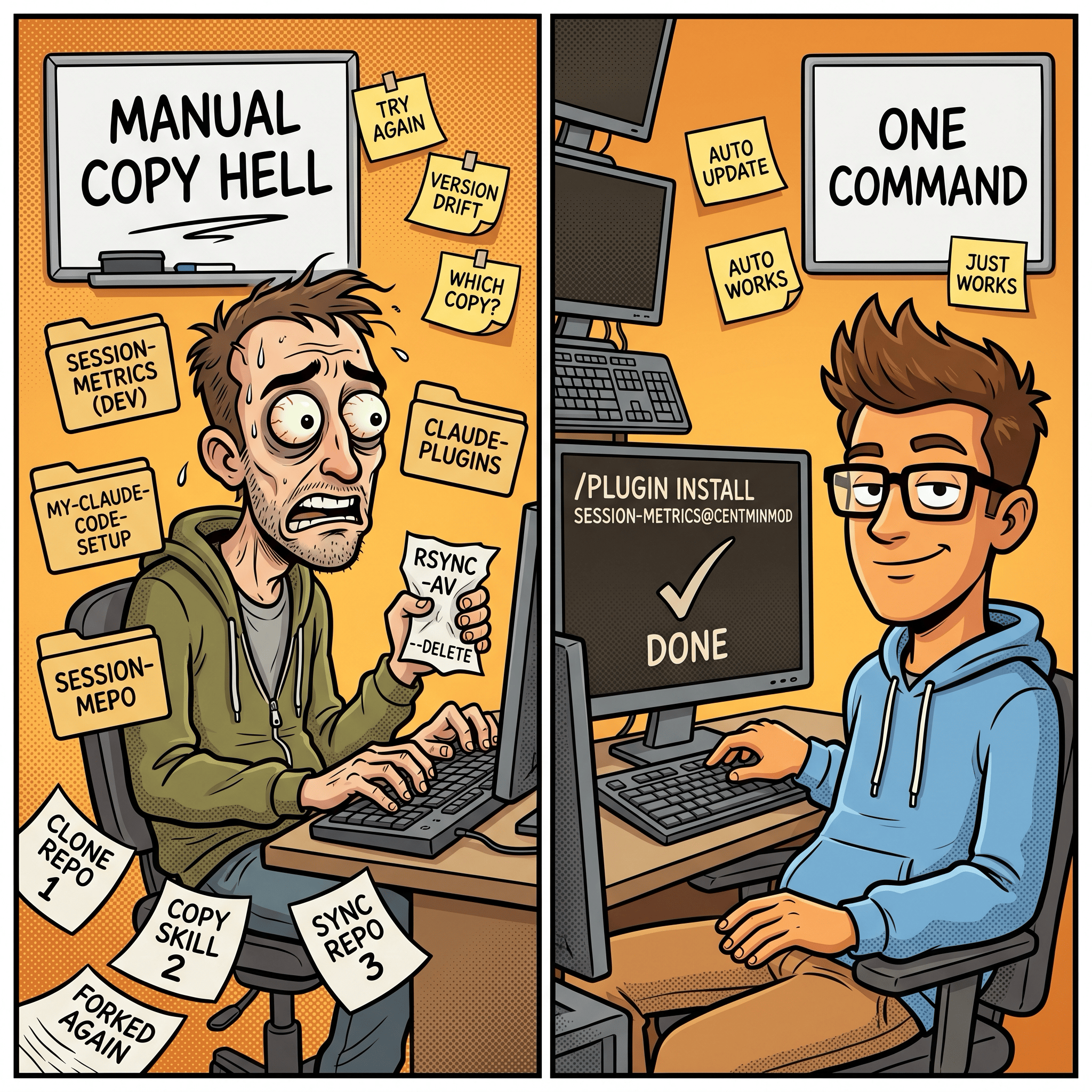
Claude Code’s /plugin marketplace system fixes both. I add the marketplace once. Claude Code fetches the manifest, stores it in ~/.claude/plugins/cache/centminmod/, and handles the install into a namespaced slot so it doesn’t collide with anything I already had locally. When I bump the version, users pick it up on the next update.
What session-metrics does
Short version: it reads Claude Code’s raw JSONL conversation logs under ~/.claude/projects/<slug>/ and produces a per-turn breakdown of token usage, cache efficiency, cost, and user-activity patterns. Five export formats. Four chart libraries to pick from for HTML. Zero network at runtime. Stdlib-only Python, runs via uv run python. You’ll need to have installed Astral uv first.
Useful for:
Understanding exactly what each turn cost, not just a session total.
Spotting where your prompt cache breaks mid-session (edit a CLAUDE.md, the next row’s cache reads drop to zero).
Debugging 5-hour block consumption and the weekly session cap on Max plans.
Attributing cost to models when you mix Opus and Sonnet.
Seeing your own activity heatmap by hour-of-day and weekday, so you can shift off Anthropic’s crunch hours.
What it reports includes a per-turn timeline, 5-hour session blocks anchored at each window’s first event, a weekly roll-up of cost and turns against the prior 7 days, session duration plus burn rate per session, an hour-of-day bar chart plus a 7x24 weekday punchcard in your local timezone, and a user-prompts-by-time-of-day breakdown that filters out tool-result entries so only real typed prompts count.
The HTML export splits into a Dashboard page with the summary cards and a Detail page with the 3D stacked column chart and per-turn table. Both pages are self-contained. The chart bundle is vendored into the repo at scripts/vendor/charts/ with SHA-256 verification before inlining, so if the hash doesn’t match the script refuses to ship that file into the HTML.

One detail worth flagging. Every turn on a single model produces a single cached prefix. If you switch mid-session from Opus to Sonnet, the new model writes its own cache from scratch and you pay for it. The skill surfaces that as a cache-write spike on the turn right after the switch, which is usually the cheapest “tell” you’ll get.
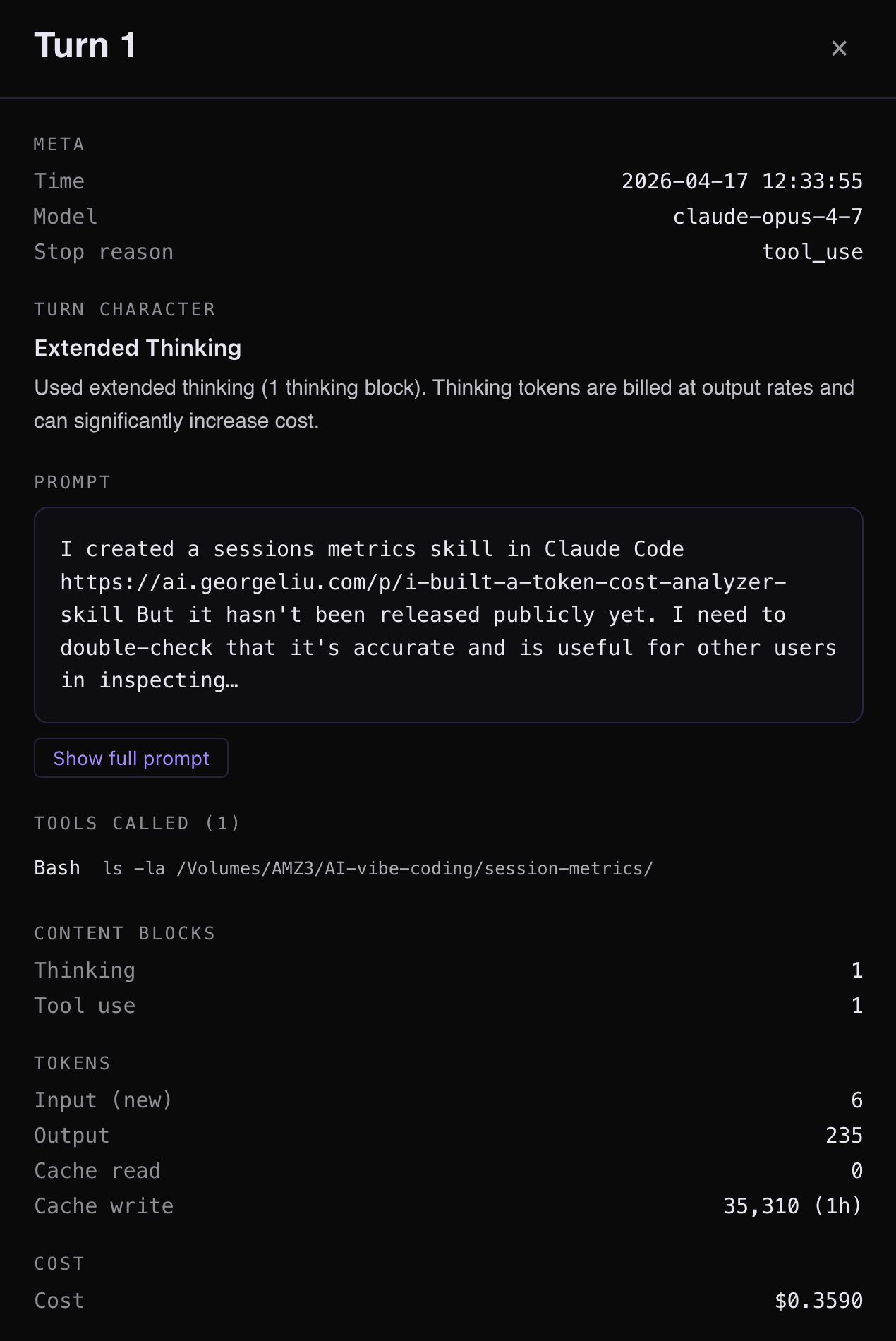
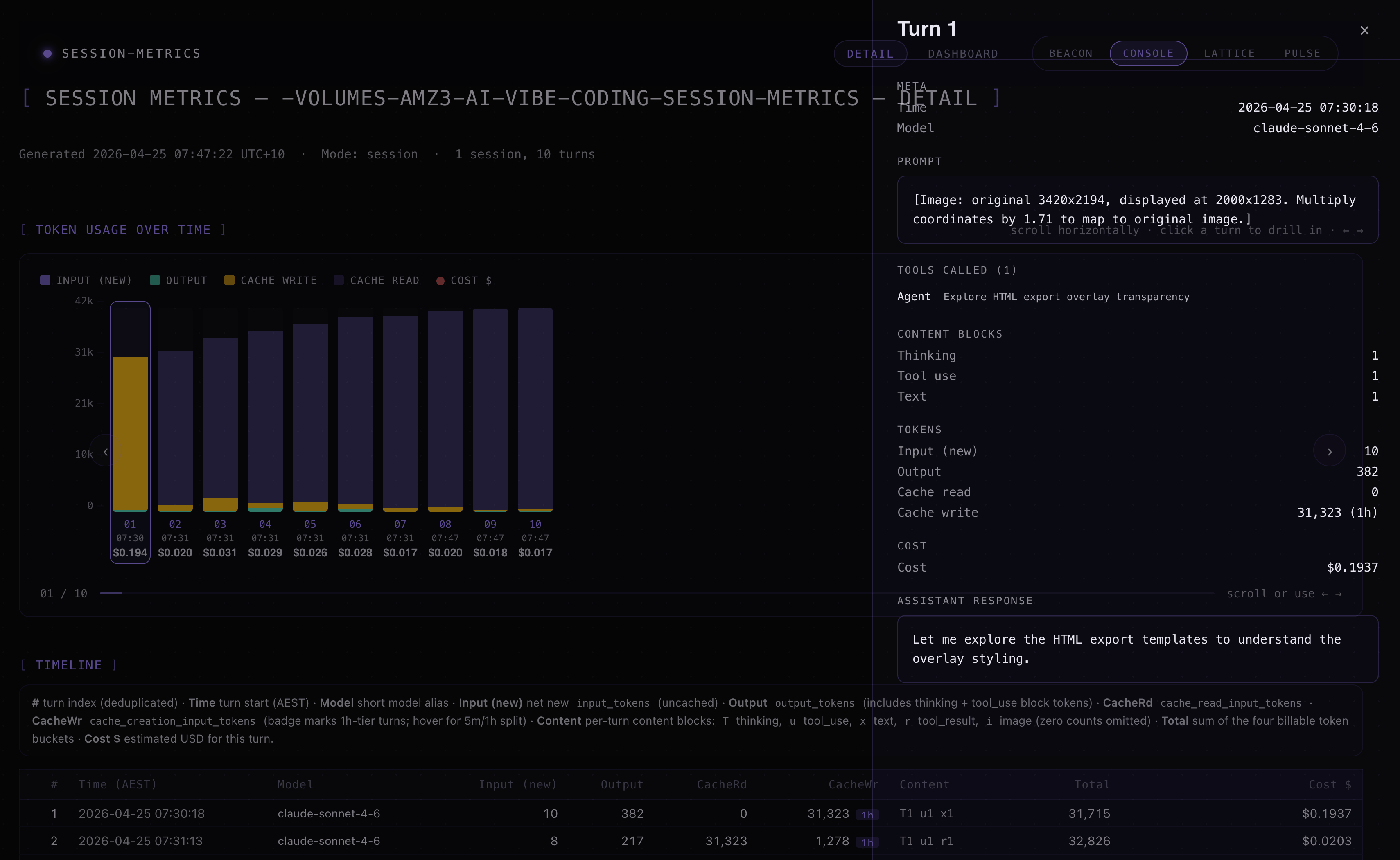
session-metrics skill plugin v1.24 first ever individual session Turn 1 insight for the very first session I had to make this plugin marketplace public. This is where the skill plugin’s public life started 😀
How to install it
The install is three lines of slash commands in the Claude Code terminal CLI (claude in your shell) or via Claude Code desktop app (read further down for those instructions). The /plugin commands aren’t wired into the desktop app or IDE extensions yet, so installs have to happen here. Once installed, the skill auto-triggers from every surface.
Open a terminal, run claude, and paste:
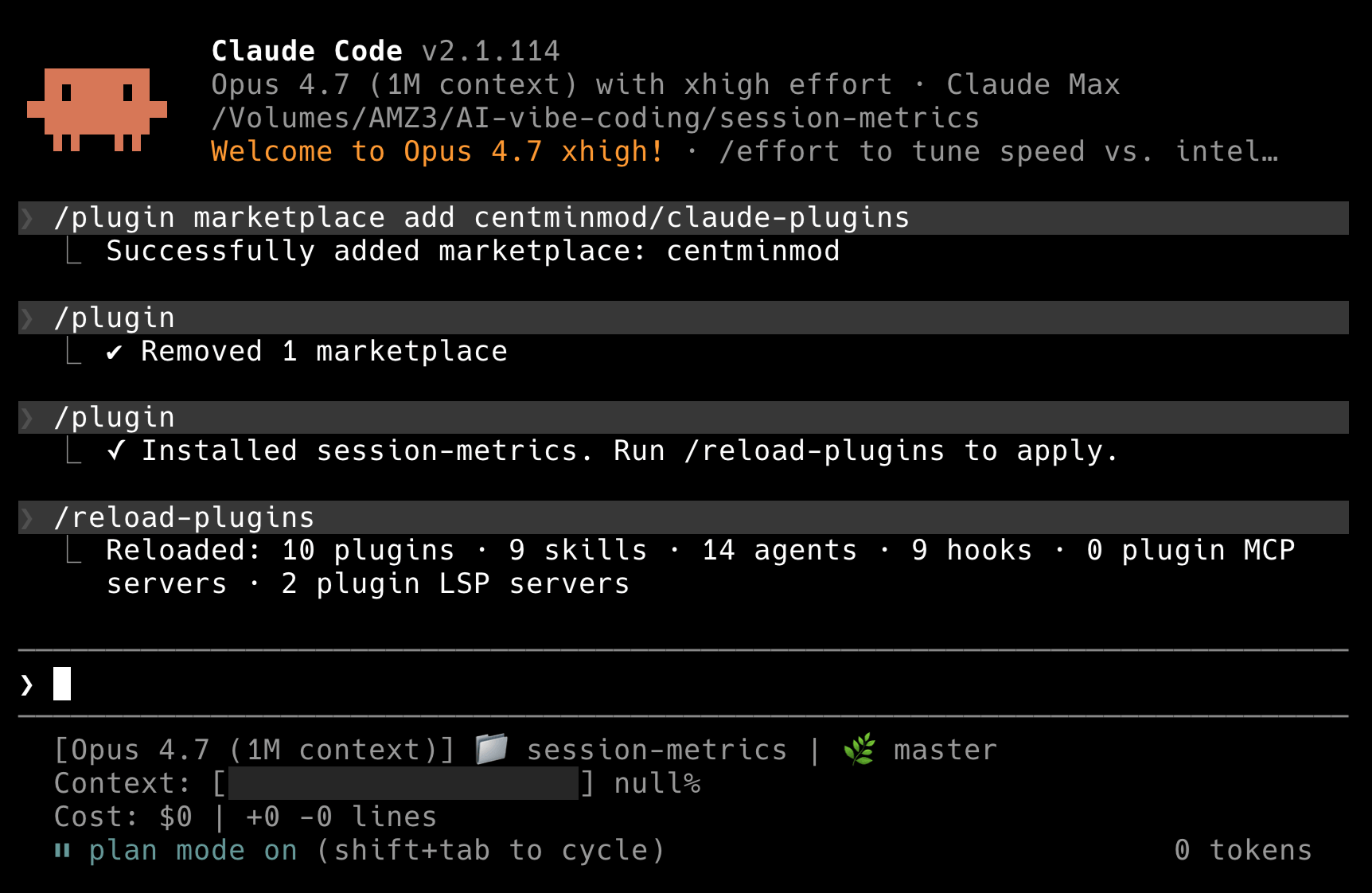
/plugin marketplace add centminmod/claude-plugins
/plugin install session-metrics@centminmod
/reload-plugins
That’s it. You’re done. The three commands do three distinct things, and each one prints its own confirmation so you know the chain held.
Step 1: add the marketplace
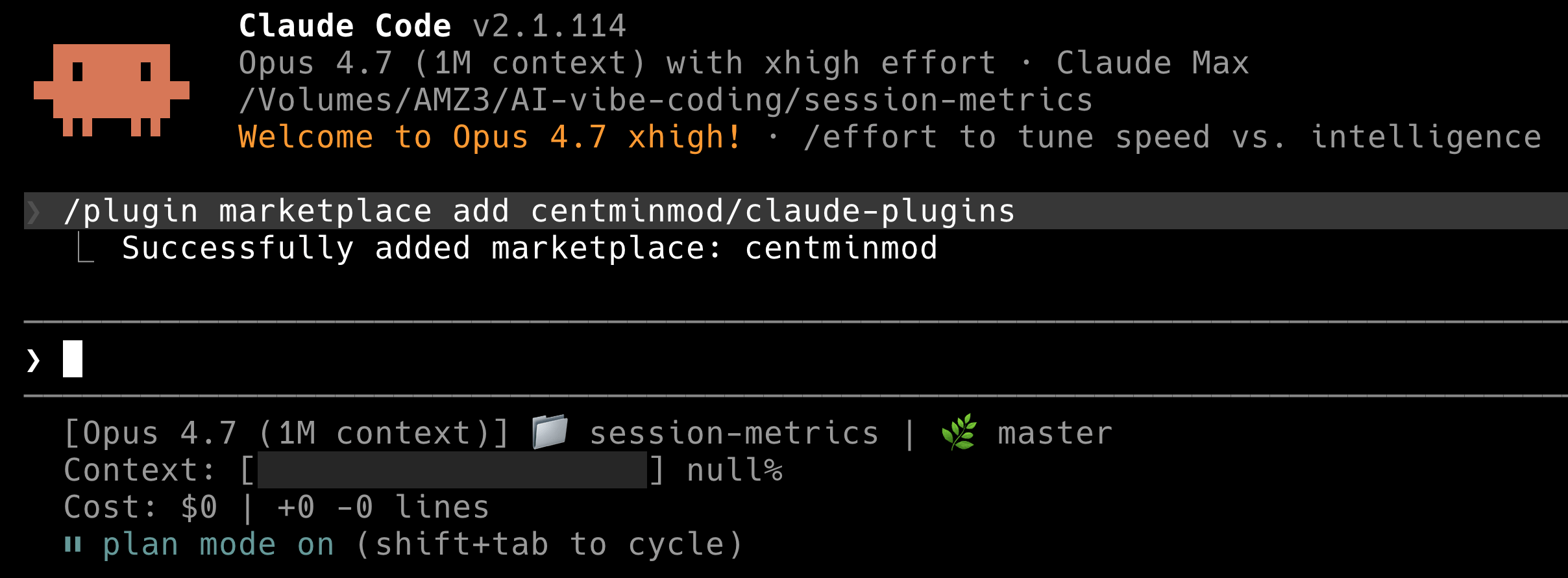
The command fetches https://github.com/centminmod/claude-plugins/.claude-plugin/marketplace.json, validates it, and adds centminmod to the set of marketplaces Claude Code will offer plugins from. It prints Successfully added marketplace: centminmod on the next line. The marketplace is now registered but no plugin is installed yet.
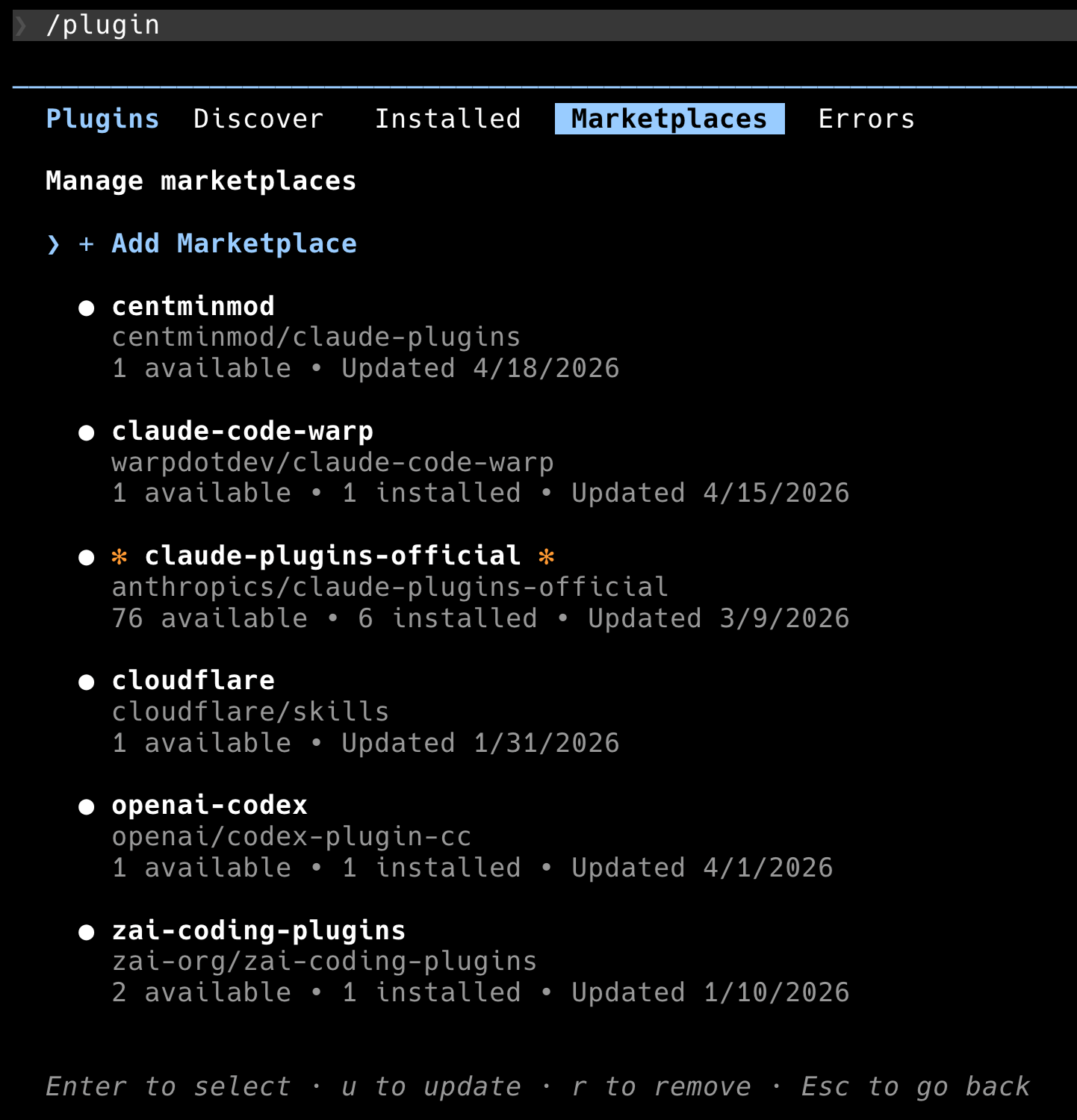
If you type /plugin on its own and tab to the Marketplaces pane, you’ll see centminmod listed alongside any other marketplaces you had configured. In the screenshot below I have six marketplaces registered. Yours will vary.
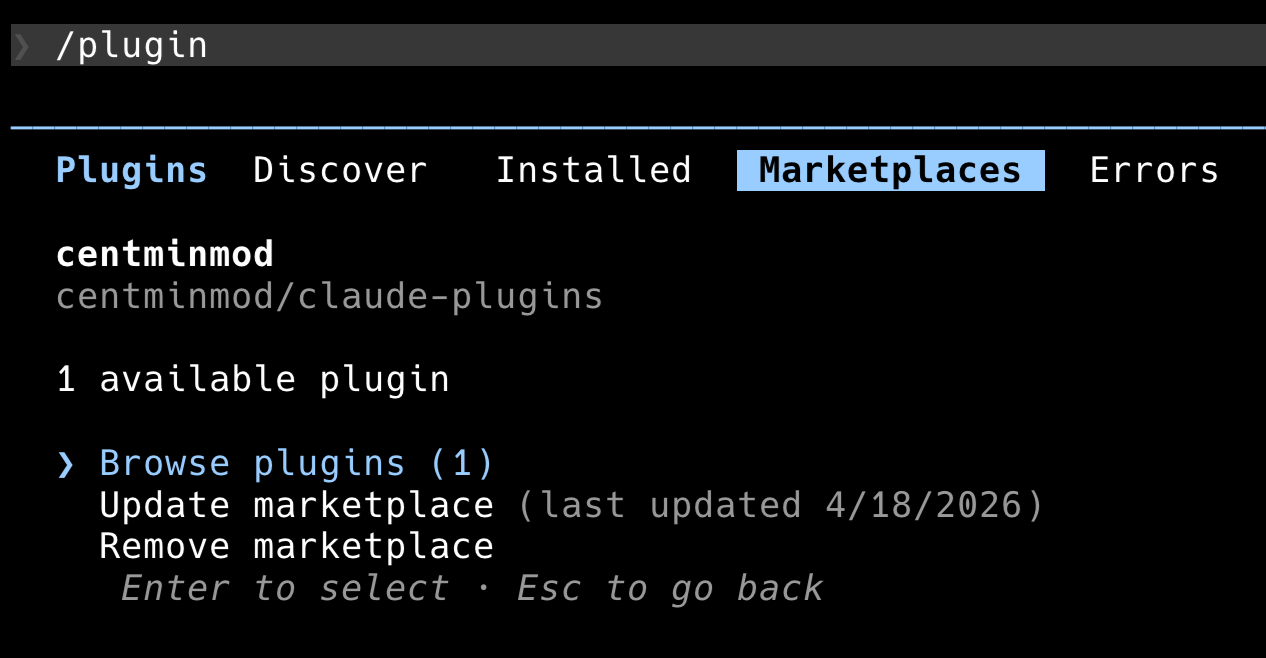
Selecting centminmod opens its detail panel: how many plugins it offers, when the marketplace was last updated, and the three actions you can take on it.
Step 2: discover and install the plugin
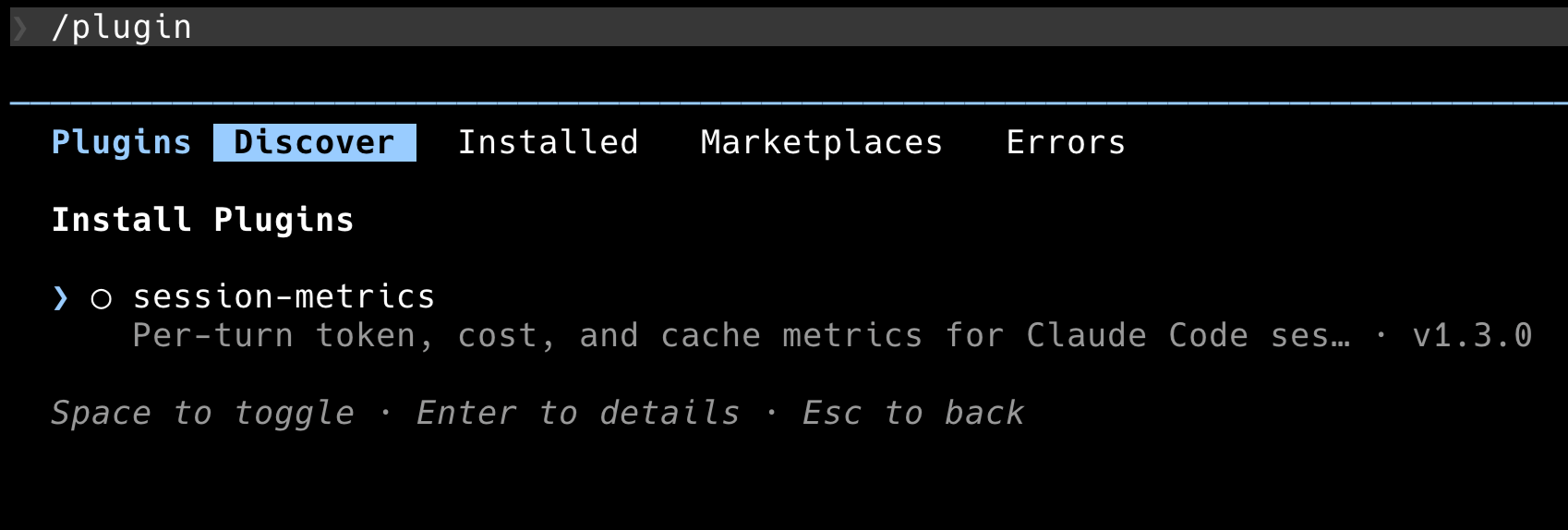
/plugin install session-metrics@centminmod does the install directly. If you’d rather browse, /plugin plus the Discover tab shows every plugin across every marketplace you’ve added. session-metrics shows up there with its version and a one-line description.
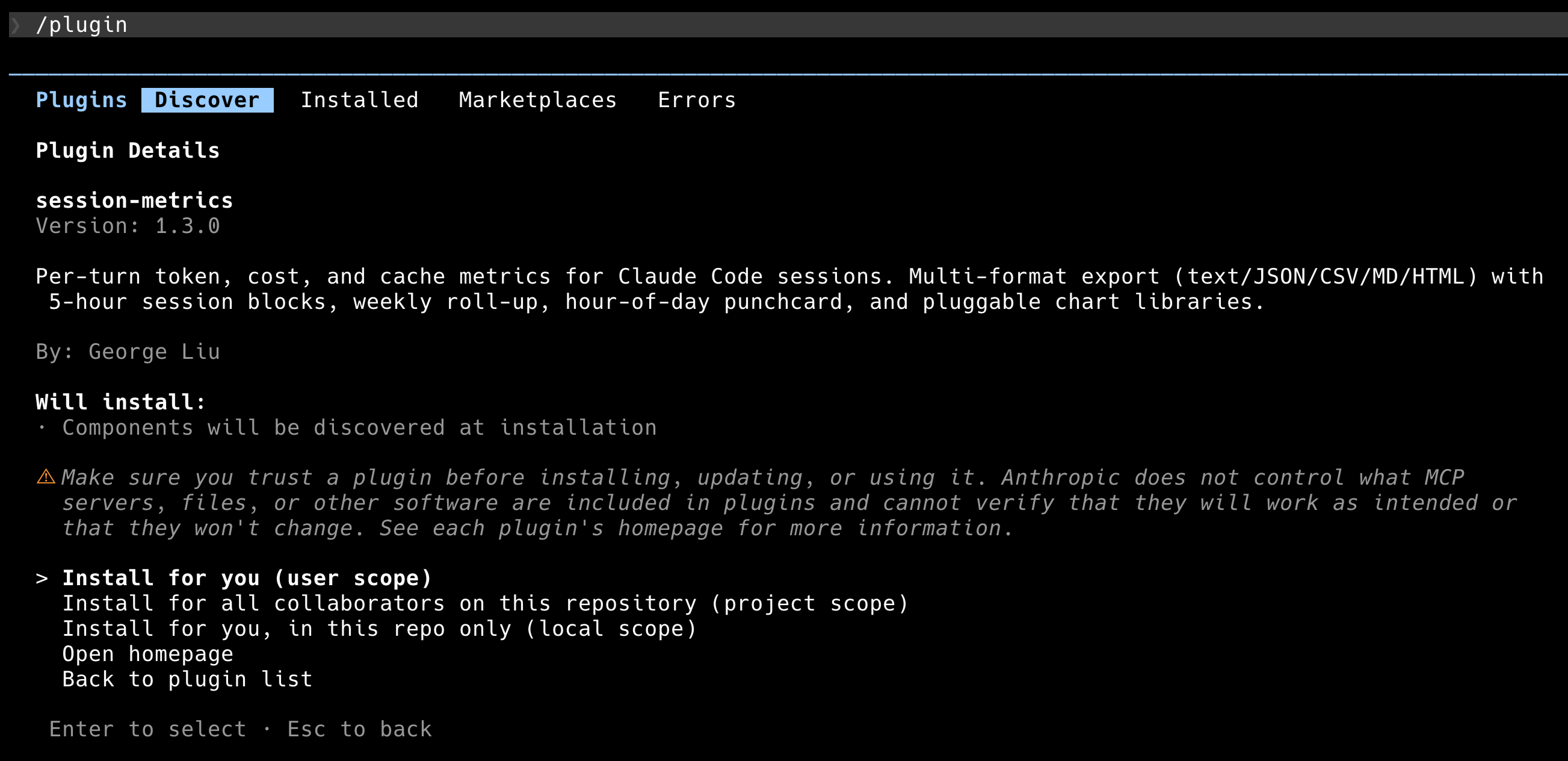
Press Enter on the row to see the full details, including the install scopes. You can install for yourself (user scope, available everywhere), for all collaborators on the current repo (project scope, commits a config file), or just for yourself in this repo only (local scope). For most people, user scope is the right default.
Back at the prompt, the confirmation message is ✓ Installed session-metrics. Run /reload-plugins to apply.
Step 3: reload plugins
/reload-plugins tells Claude Code to re-scan every plugin it knows about and register the components (skills, commands, agents, hooks, MCP servers, LSP servers). On my machine the reload output reads Reloaded: 10 plugins · 9 skills · 14 agents · 9 hooks · 0 plugin MCP servers · 2 plugin LSP servers. Yours will show different numbers depending on what else you have installed.
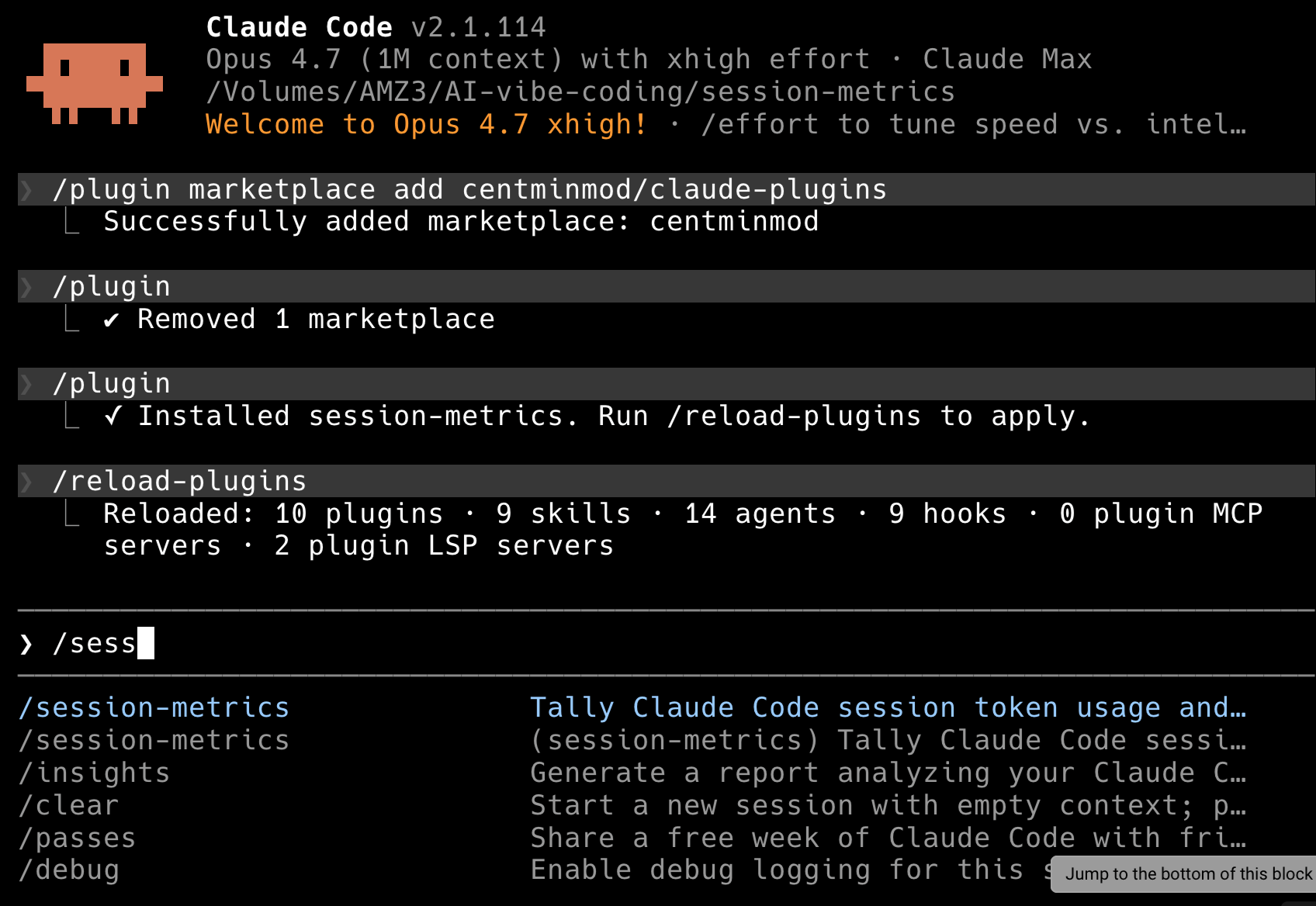
After the reload, session-metrics is live. You can verify by typing /sess and watching autocomplete offer /session-metrics:session-metrics.
How to use it

Two paths. You can ask Claude the natural-language questions the skill’s SKILL.md is trained on, or you can invoke the slash command directly.
Natural language first. The skill’s description tells Claude to auto-trigger on questions like how much has this session cost?, show me token usage, or what did each turn cost?. In practice, anything that sounds like a cost or cache question in the current project fires the skill. Claude reads the SKILL.md, figures out the right flags, runs the Python script, and hands back the output.
For explicit control, use the slash command:
Export specific session ID’s metrics to HTML from command line has dedicated shell script (added in v1.60 session-metrics plugin).
Run from plugin level installed session metrics.
"$(find ~/.claude/plugins/cache -path '*/session-metrics/*/skills/session-metrics/scripts/session-metrics-quick.sh' | sort -V | tail -1)" \
  --session <uuid> --quiet --output html json
Run from repo level installed session metrics.
.claude/skills/session-metrics/scripts/session-metrics-quick.sh --session <uuid> --quiet --output html jsonExport current session metrics to HTML within the target session.
/session-metrics:session-metrics export session metrics to htmlExport entire project’s session metrics to HTML.
/session-metrics:session-metrics export entire project's session metrics to htmlExport entire Claude Code instances’ projects metrics to HTML.
/session-metrics:session-metrics all-projects to HTMLThe namespace prefix (session-metrics:) is how plugin skills avoid colliding with personal-scope skills. If you also have a direct-copy version of session-metrics installed at ~/.claude/skills/, both will show up in the completion list and both can co-exist.
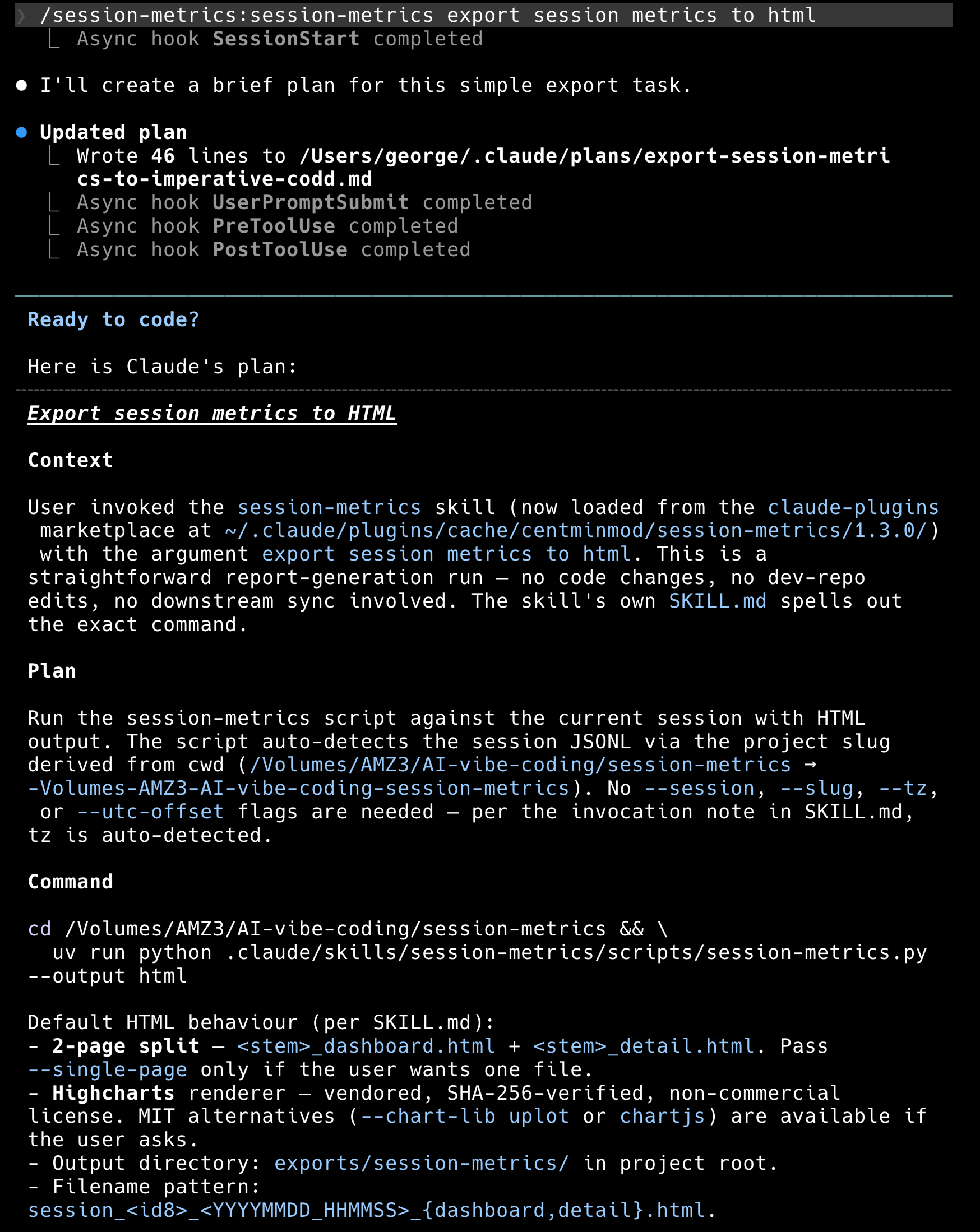
If you are in plan mode, Claude will build a plan first (this is Claude Code’s default pre-execution step). The plan lays out the context, the command, the default HTML behaviour per SKILL.md (2-page split, Highcharts renderer, output directory), and what it is and isn’t doing on this run. You get a chance to approve, edit, or redirect.
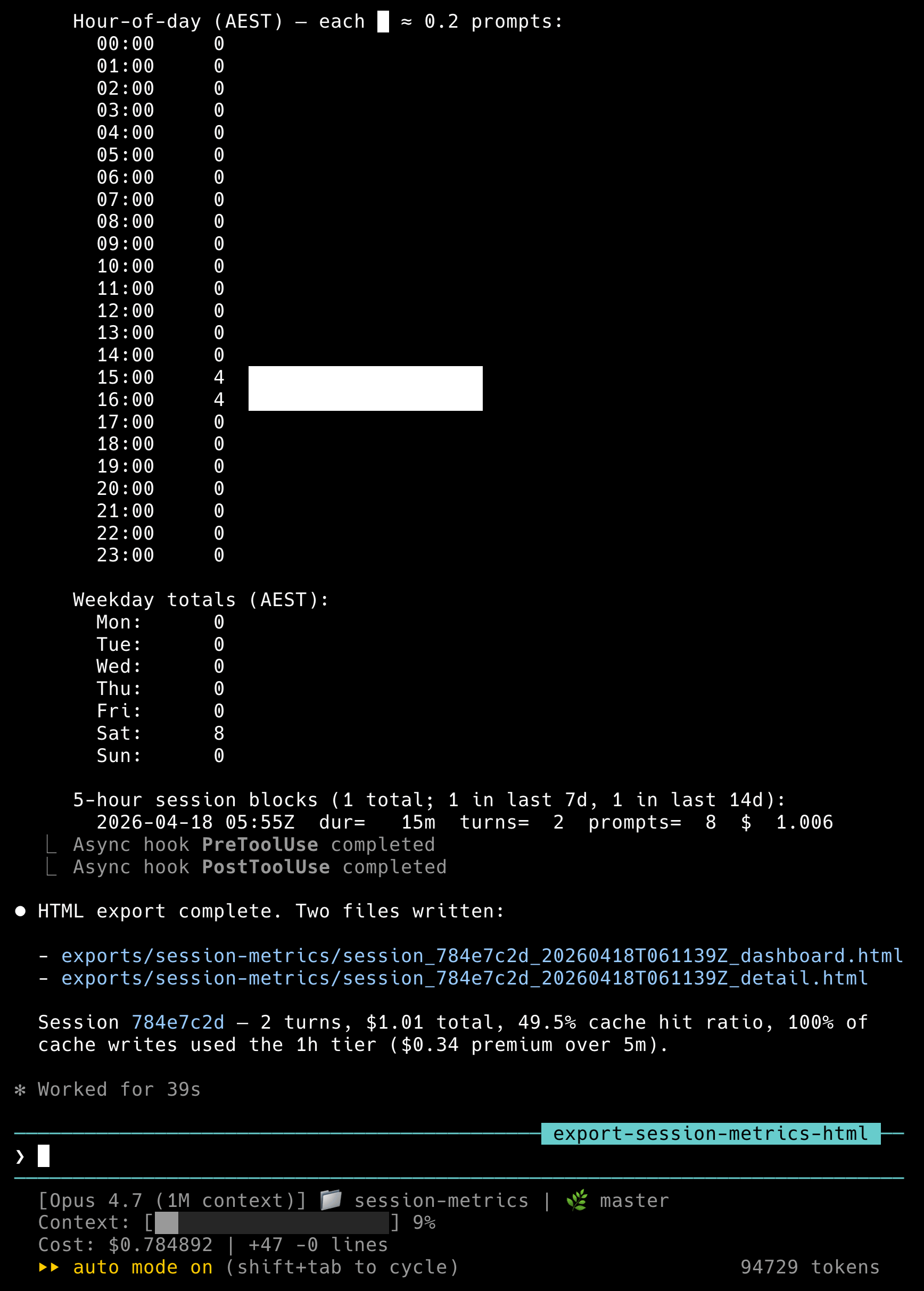
Once approved, the script runs. You will get a timeline table in stdout, four bands of stat cards, a cache-savings footer, a weekly roll-up, a 5-hour block list, and the hour-of-day punchcard. The last thing it prints is the filename it wrote, so you can open it straight away.
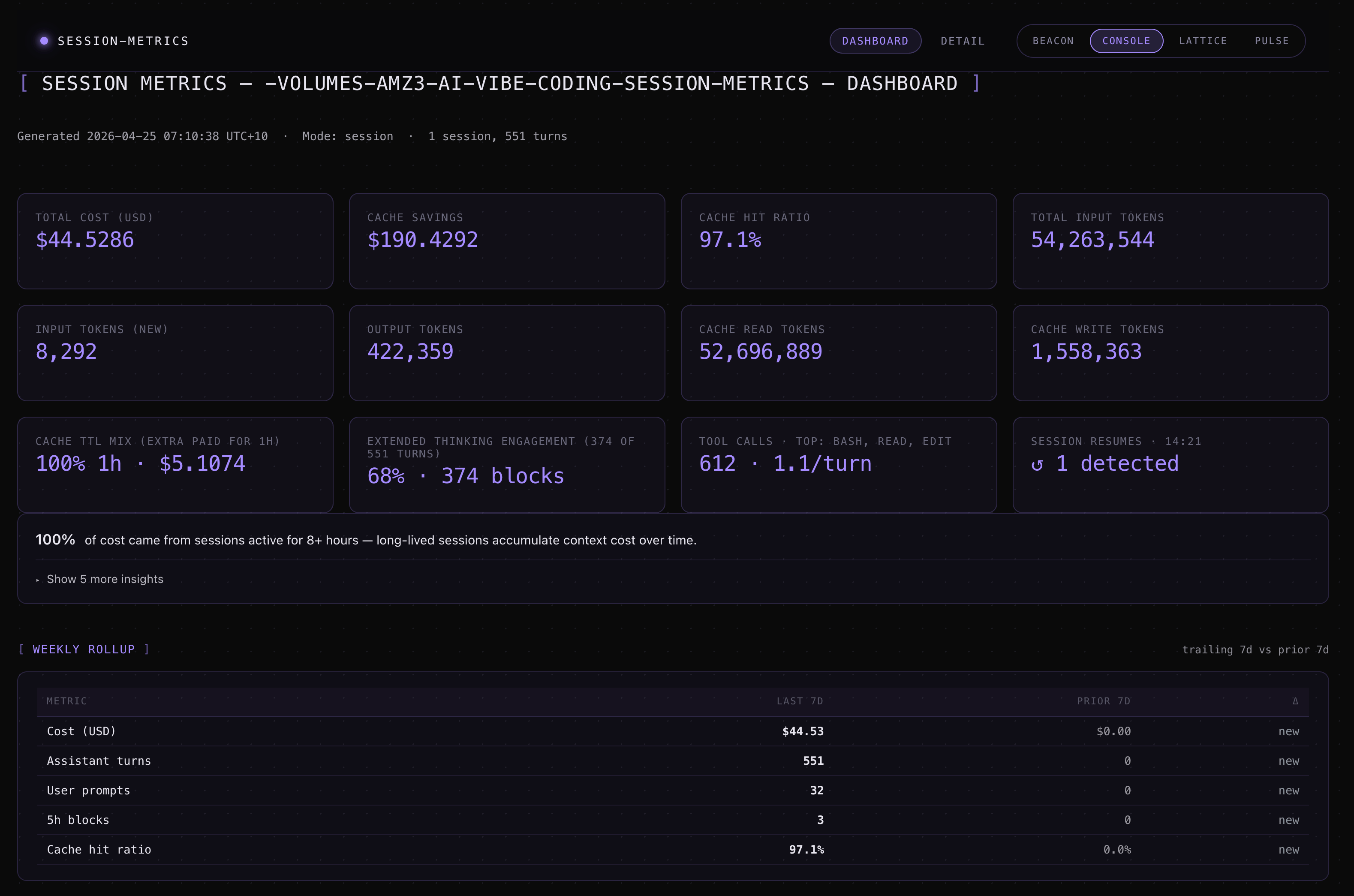
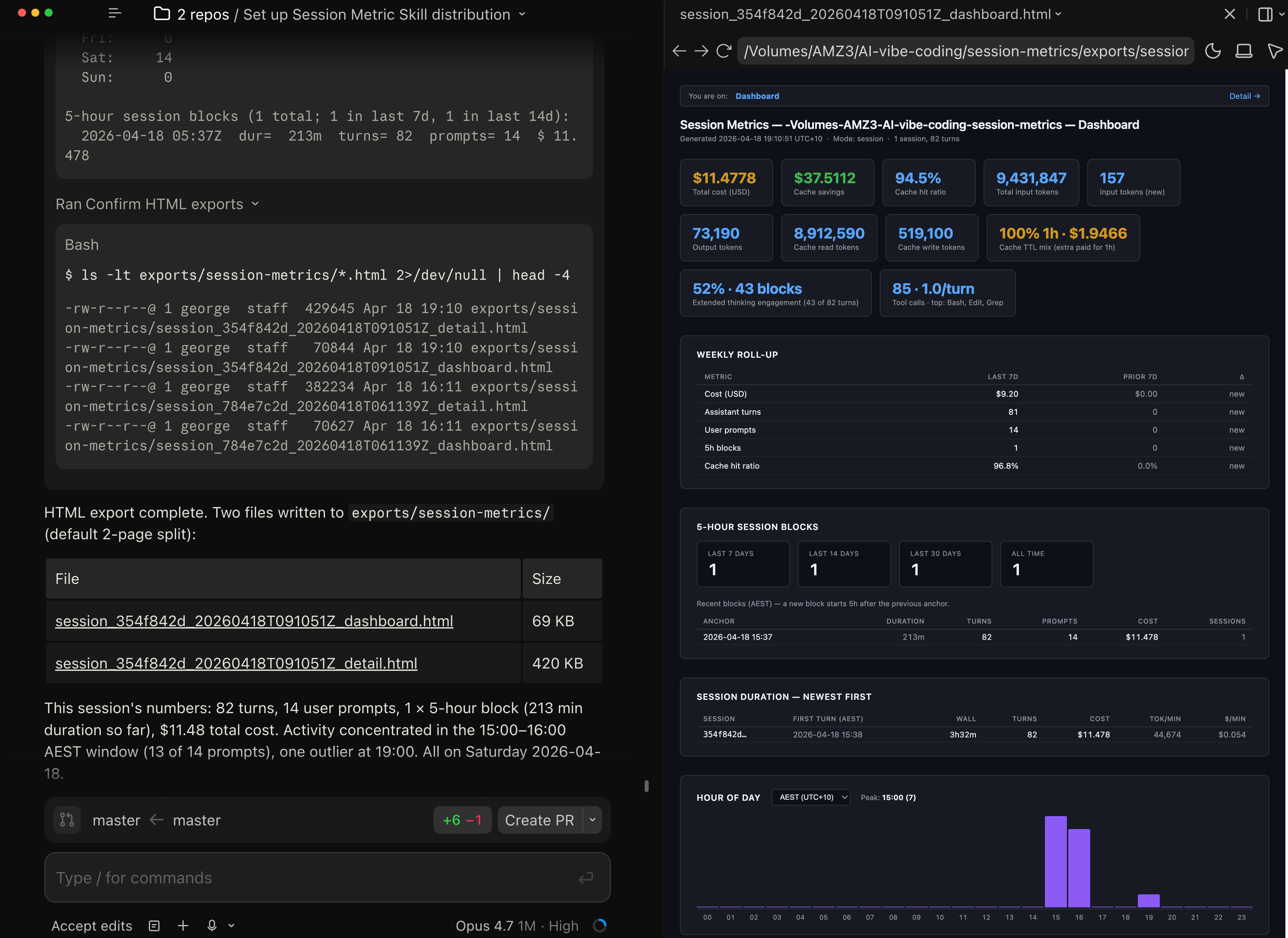
The HTML version is where the skill earns its keep. It opens in any browser, fully self-contained, no network needed. The Dashboard page is the executive summary:
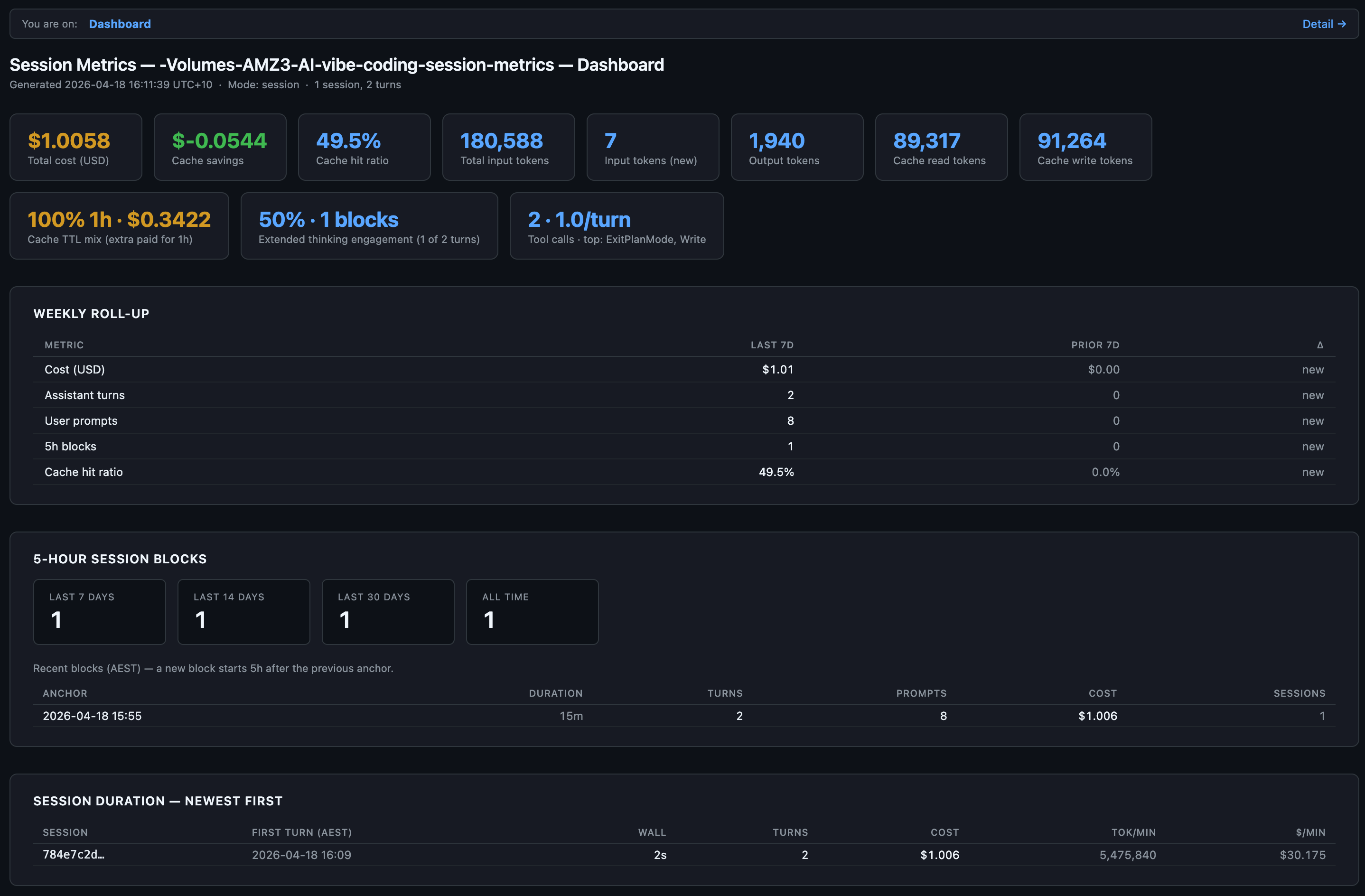
Every card tells a different part of the story. Total cost and cache savings are the money line. Cache hit ratio tells you whether the prefix is holding (anything above 90% is healthy on a warm session). The “1h” badge under Cache Write and the “100% 1h” card mean every cache write on this session paid the 1-hour TTL premium, which is correct for a Max plan. Extended thinking engagement reports that 1 of 2 turns used adaptive thinking (50%), which is Opus 4.7’s default behaviour when /effort xhigh is active.
The Detail page is where you go when “what did turn 19 cost” is the actual question:
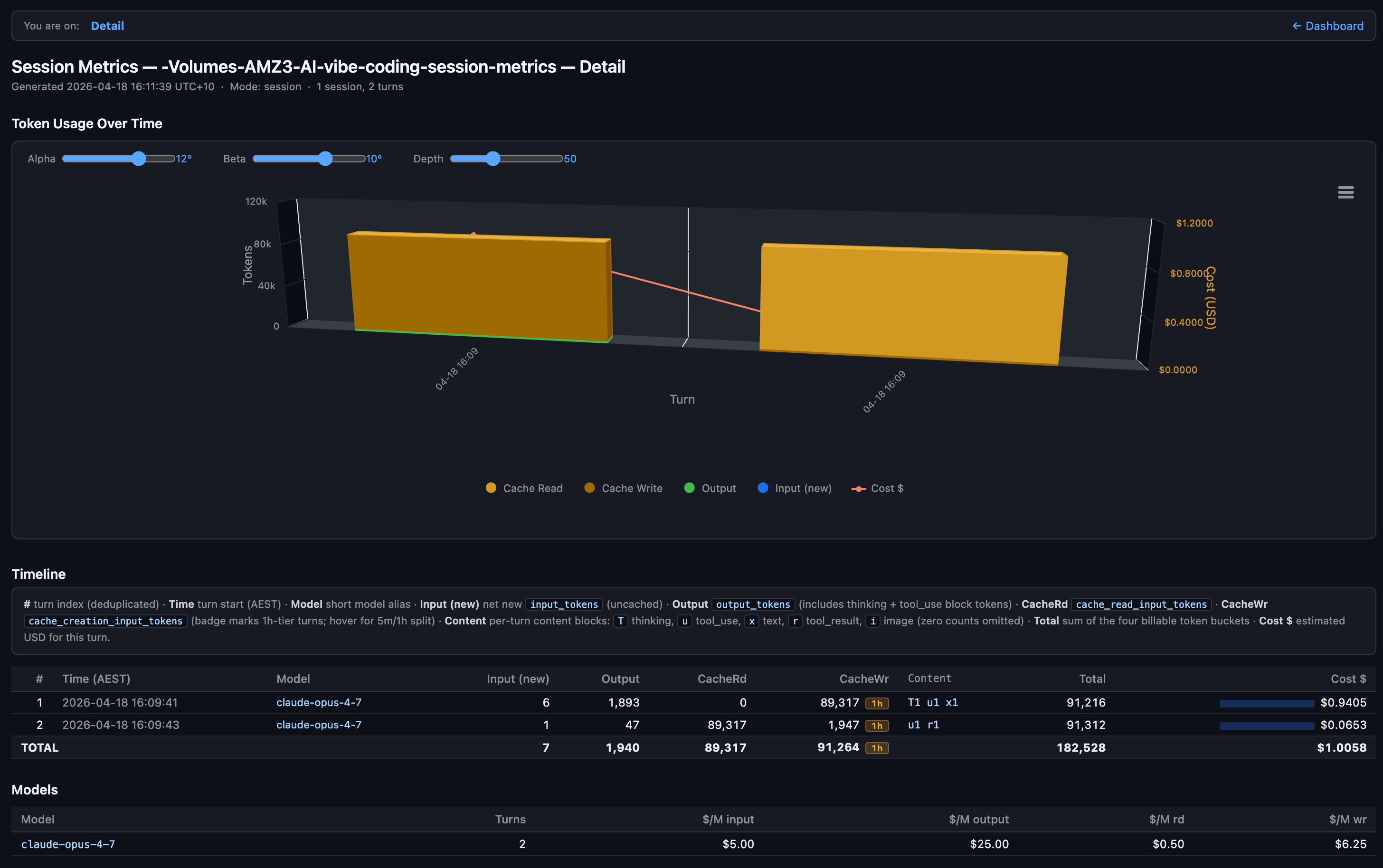
The per-turn table is the whole point of the skill. Each row is a single assistant turn. The columns are:
# — turn index after deduplication (sidechain/resumed turns are collapsed so the count matches what actually billed).
Time (AEST) — wall-clock timestamp of when the turn started, in your local timezone.
Model — short alias of the model that served the turn (e.g.
claude-opus-4-7), so mixed-model sessions are obvious at a glance.Input (new) —
input_tokensfrom the JSONL: net-new prompt tokens the API had to read fresh, i.e. not served from cache. This is the bucket billed at the full input rate.Output —
output_tokens, including thinking-block tokens and tool_use argument tokens. Anthropic doesn’t expose a separatethinking_tokensfield, so extended-thinking cost is already folded in here at the output rate.CacheRd —
cache_read_input_tokens: tokens served from an existing prompt cache entry, billed at ~10% of the input rate.CacheWr —
cache_creation_input_tokens: tokens written into the cache on this turn. The1hbadge marks turns that used the 1-hour TTL tier (billed higher than the 5-minute default); hover the badge to see the 5m/1h split for that turn.Content — compact letter encoding of the content blocks the assistant emitted on this turn, with a count for each. The letters map to the five block types the Claude API can return:
T— thinking: extended-thinking blocks. Their token cost is already folded intooutput_tokens(and therefore the Output column), but the JSONL only stores the block signature, not the reasoning text. A highTcount flags a turn where the model deliberated a lot before answering.u— tool_use: the model called a tool. Eachuis one tool invocation, sou3means the turn fired three tool calls in parallel. The arguments JSON is billed as output tokens.x— text: a natural-language message block back to the user. Pure-conversation turns look like a lonex1; agentic turns often have zeroxbecause the model only emitted tool calls.r— tool_result: a tool result block the model incorporated into its reply. These show up on turns where the harness fed tool output back in and the model acknowledged it in the same assistant message.i— image: an image block (vision input attached to the turn, or an image returned by a tool).
Zero counts are omitted so the column stays scannable. The shape of the string tells you what kind of turn it was at a glance, independent of token counts:
T1 u3is a thinking-heavy agentic turn,x1is a plain reply,u1 r1is a tool round-trip, andT1 x1is a reasoned conversational answer. This is the behavioural signal that raw token columns can’t give you — two turns with identical Total tokens can have very different Content strings and mean very different things about how the session is being spent.Total — sum of the four billable token buckets (Input + Output + CacheRd + CacheWr) for the turn.
Cost $ — estimated USD for the turn, computed by multiplying each bucket by its per-million rate for that model and summing. The inline bar gives a quick visual of expensive vs. cheap turns.
The Models section at the bottom spells out the per-million rates the skill applied — $/M input, $/M output, $/M rd (cache read), $/M wr (cache write) — so the cost math is auditable rather than opaque.
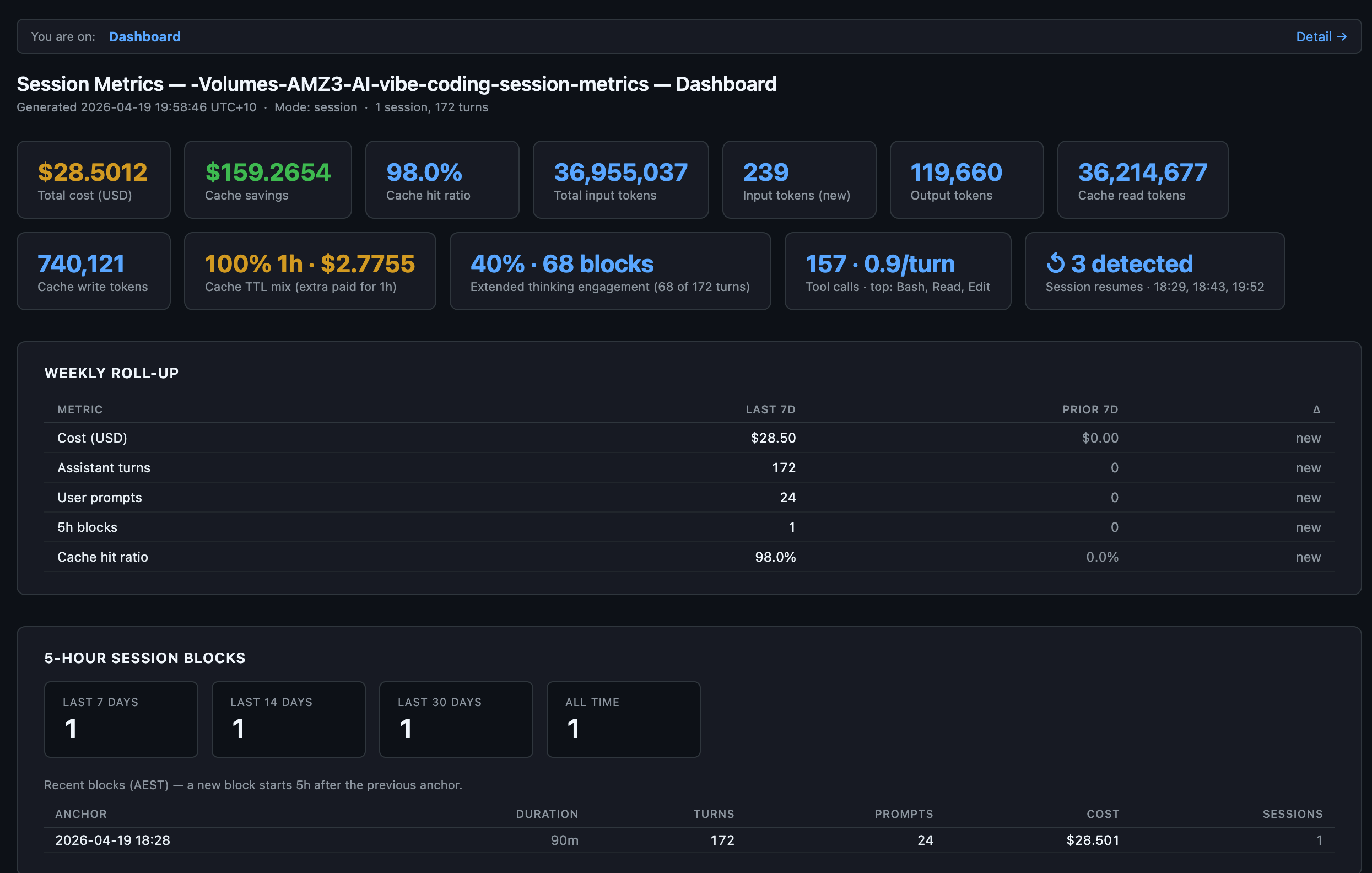
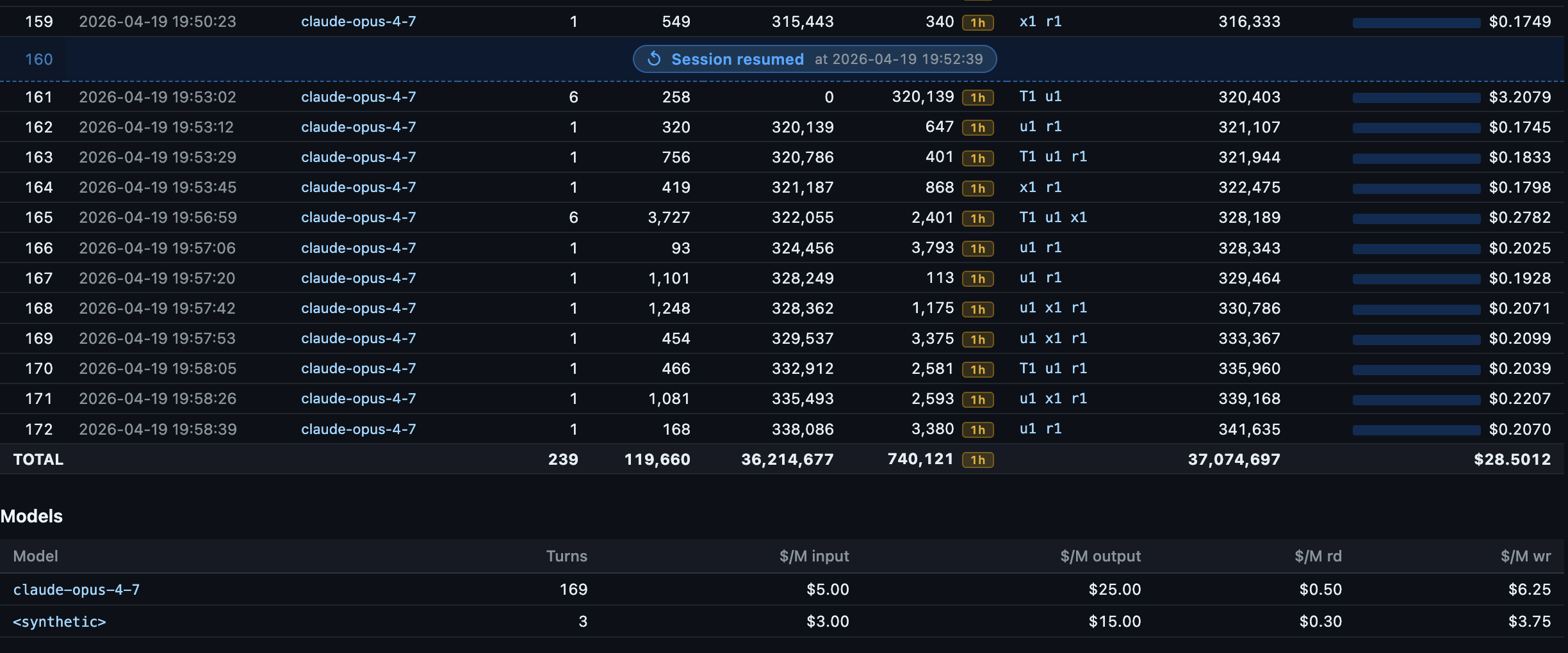
session-metrics v1.4.1 added session resumption marker tracking when you resume your sessions.
The dashboard below lists 3 detected session resumptions for this chat session.
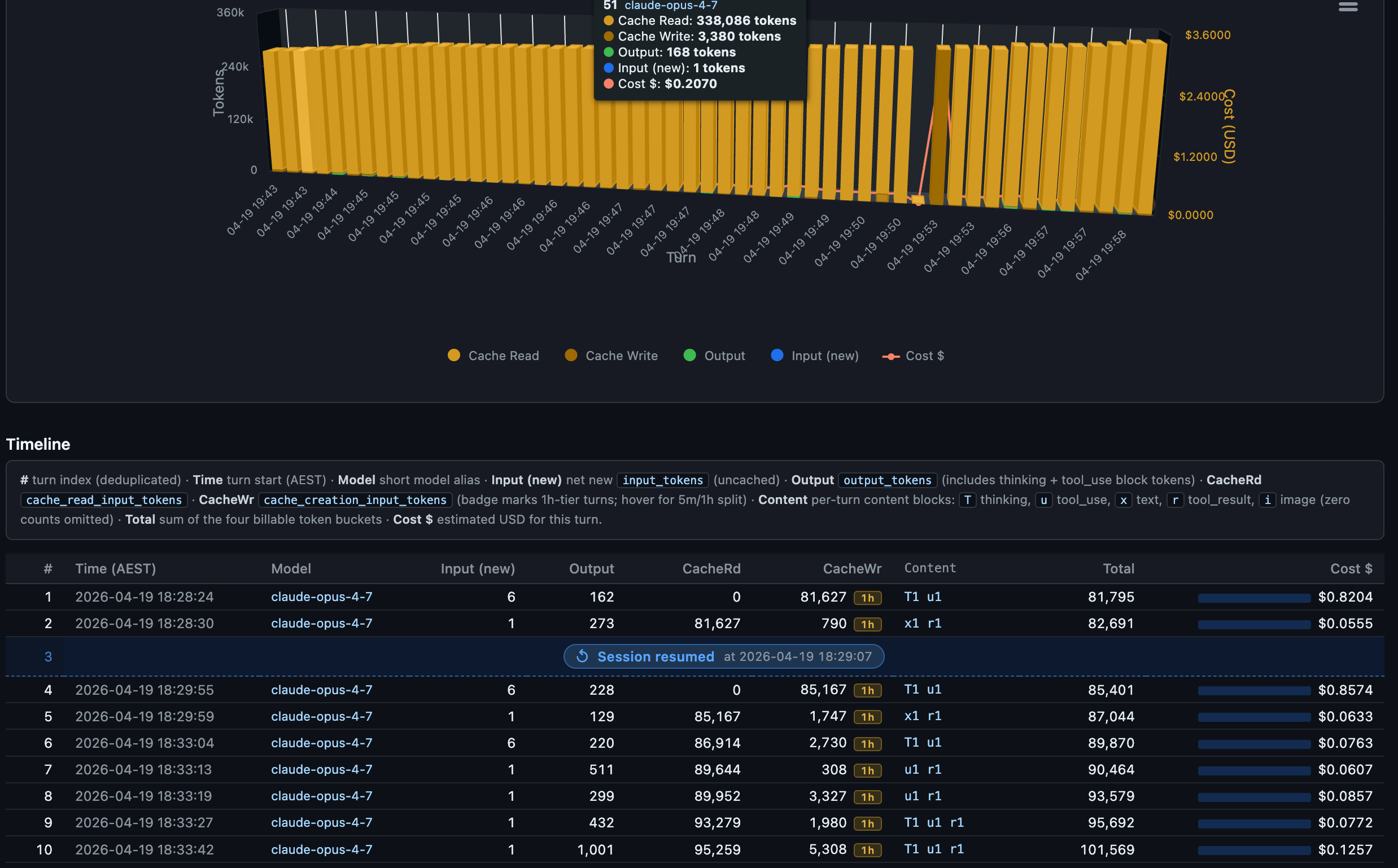
Example from 2 of the session resumptions within this chat session
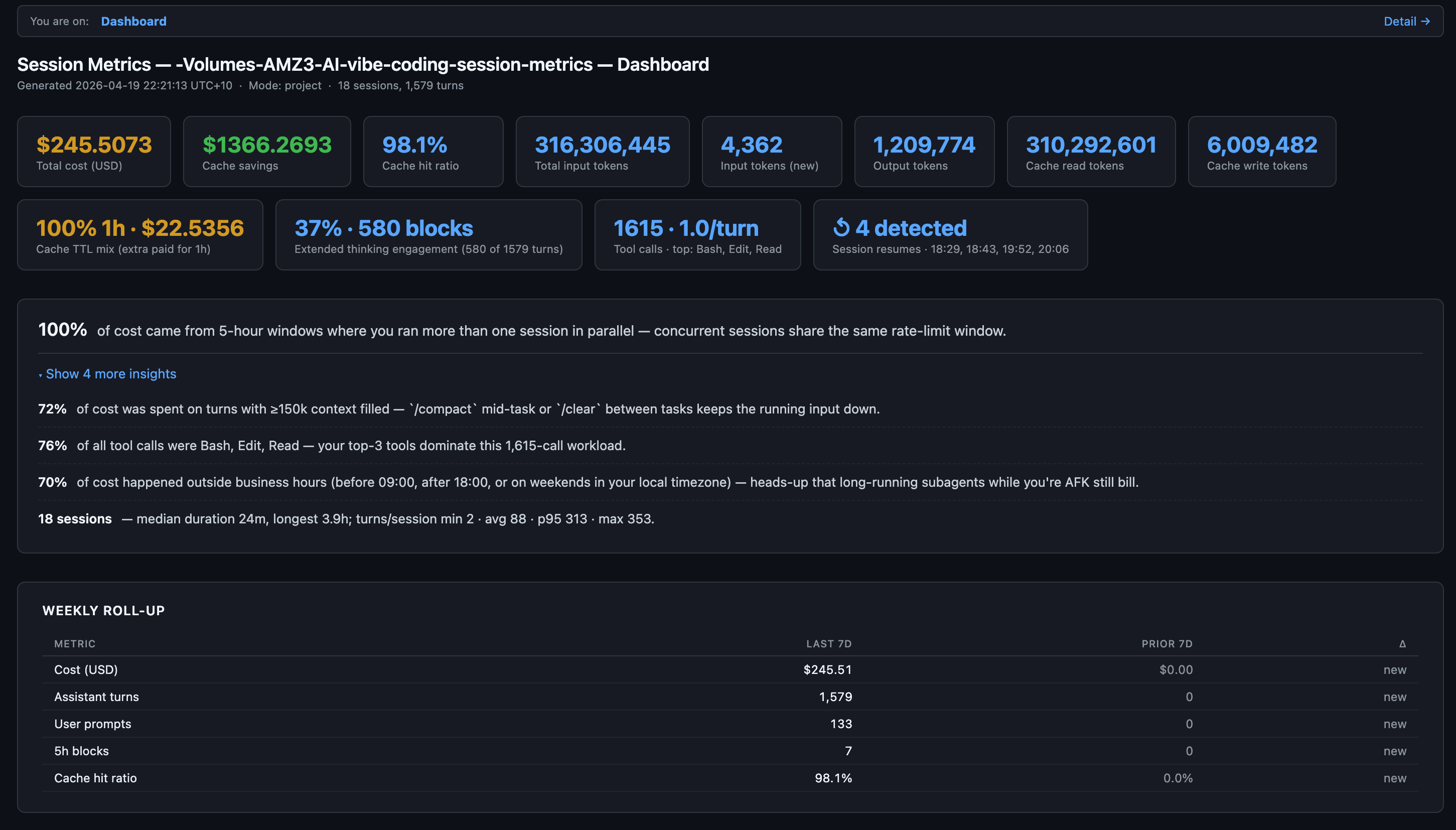
session-metrics v1.5.0 added similar /usage command insights from Claude Code CLI. This is project level export to HTML demo below.
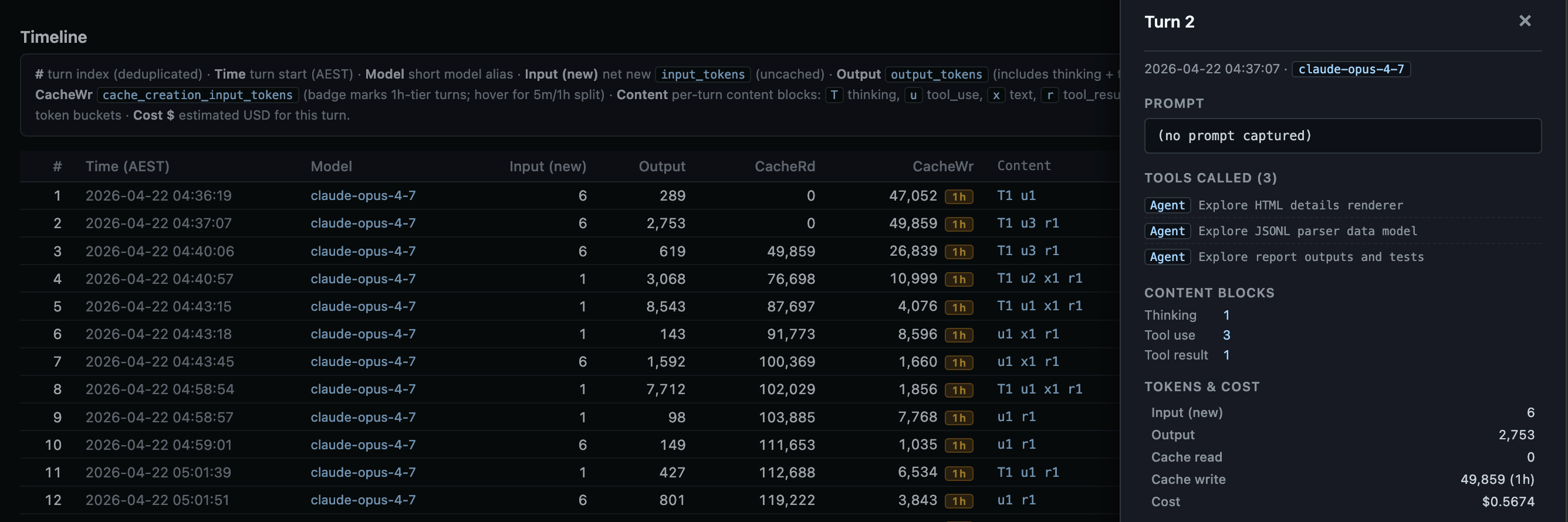
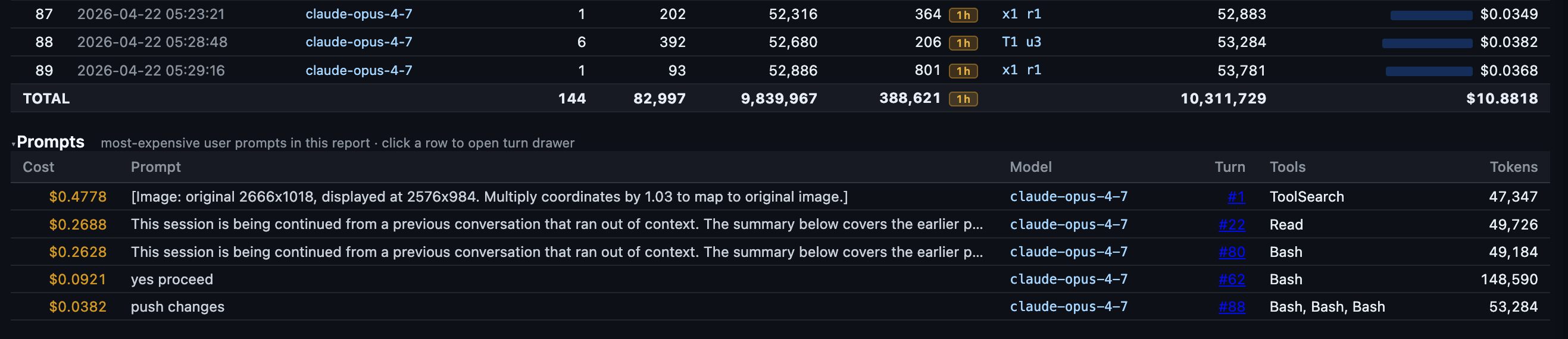
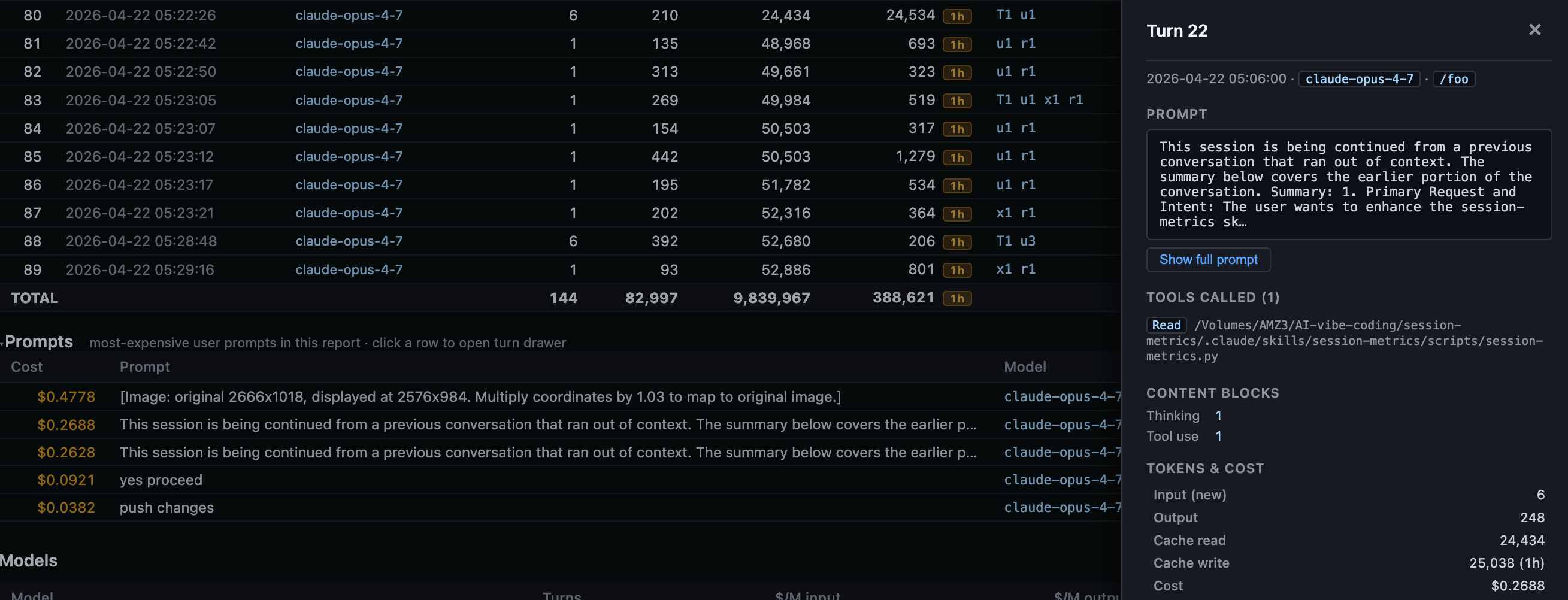
session-metrics v1.11.0 adds a clickable per turn timeline rows to review a right-side full panel with prompt and tool usage details including token usage and costs and additional prompts listing table.
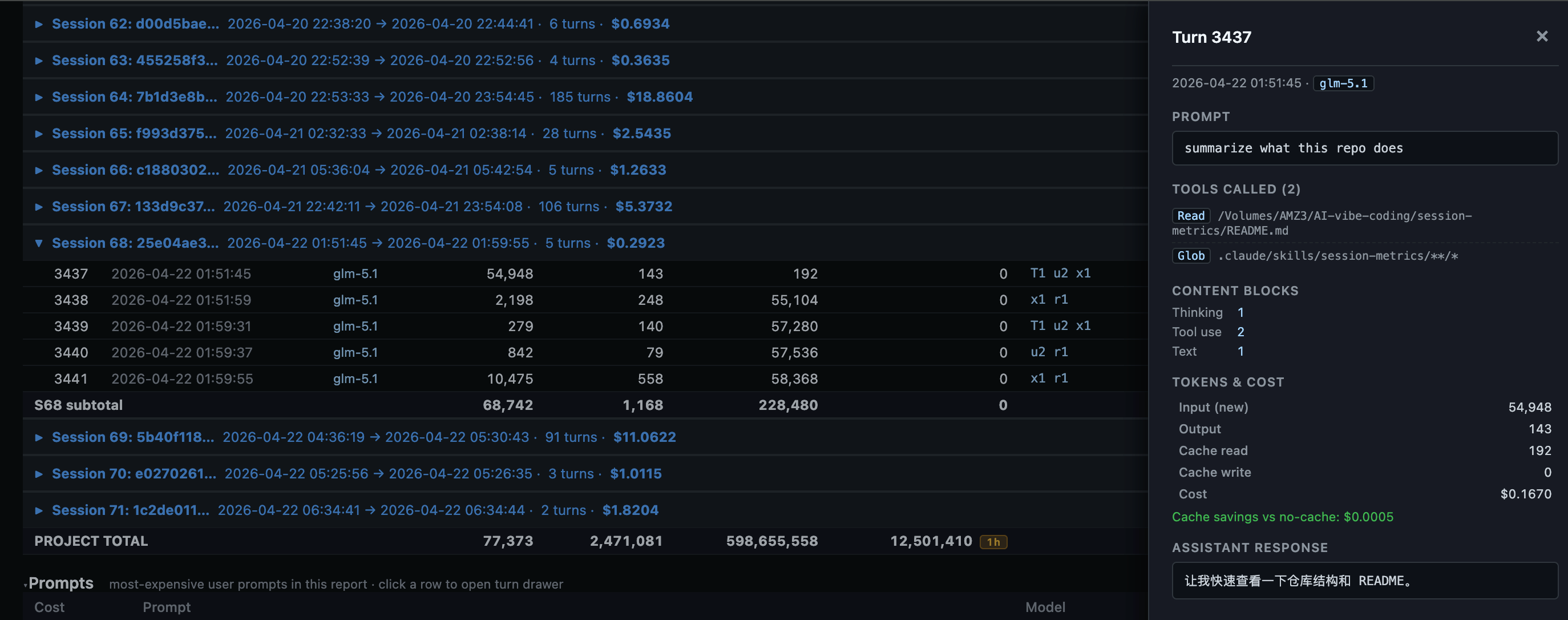
Using ZAI GLM-5.1 LLM model within Claude Code saw a Chinese response once 😆
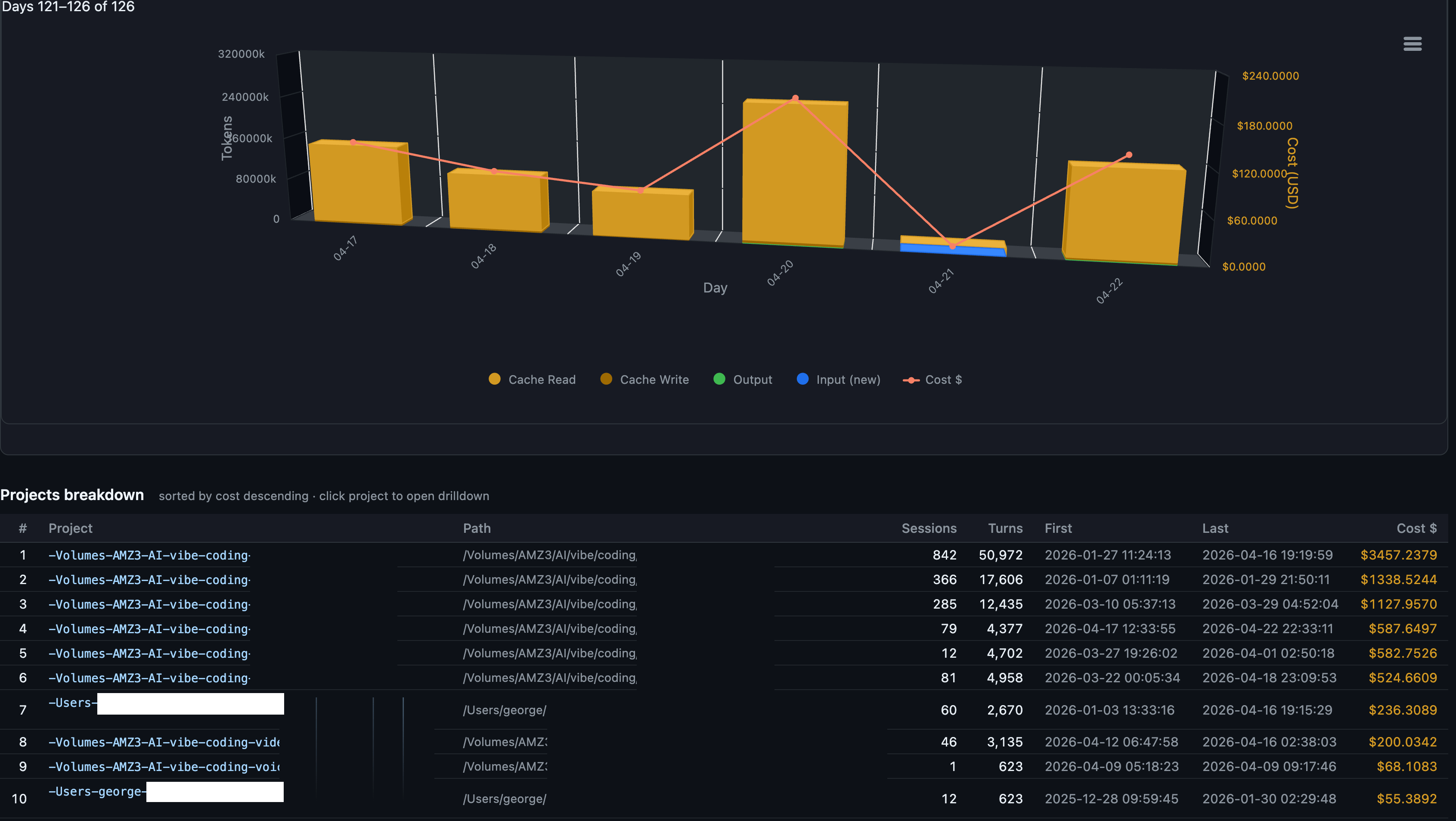
session-metrics v1.14.1 added all Claude Code project instance exported dashboards for every project within your Claude Code installation - including list of projects by token cost descending and each project has clickable link to individual project token usage/cost metrics.
Export entire Claude Code instances’ projects metrics to HTML.
/session-metrics:session-metrics all-projectsAll Claude Code projects index page - across 126 active days for 30 projects.

Daily charted costs with list of projects ordered by descending total token costs.
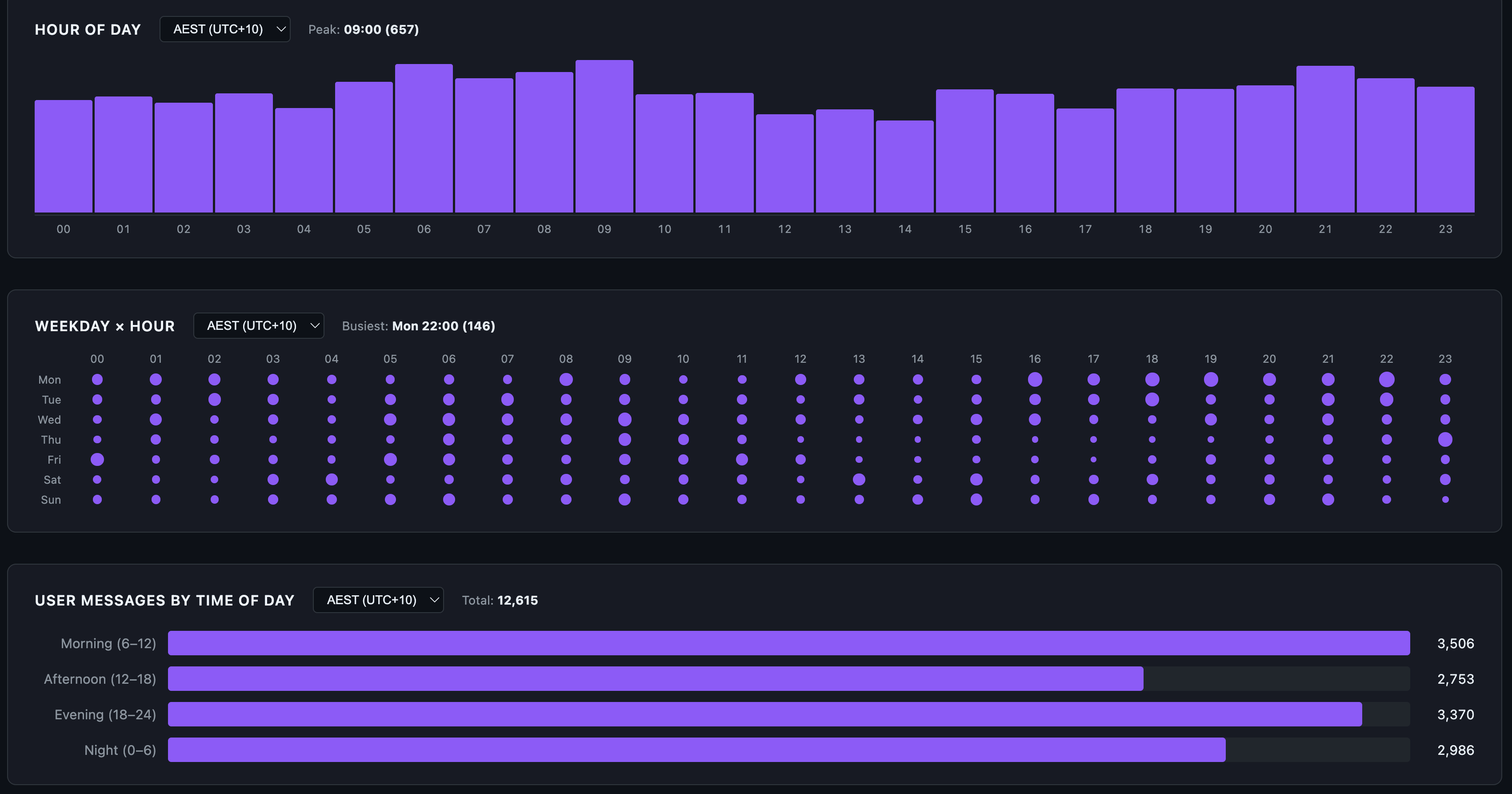
Hour of day, weekday and user messages by time of day so you have an idea of overall Claude Code usage patterns.
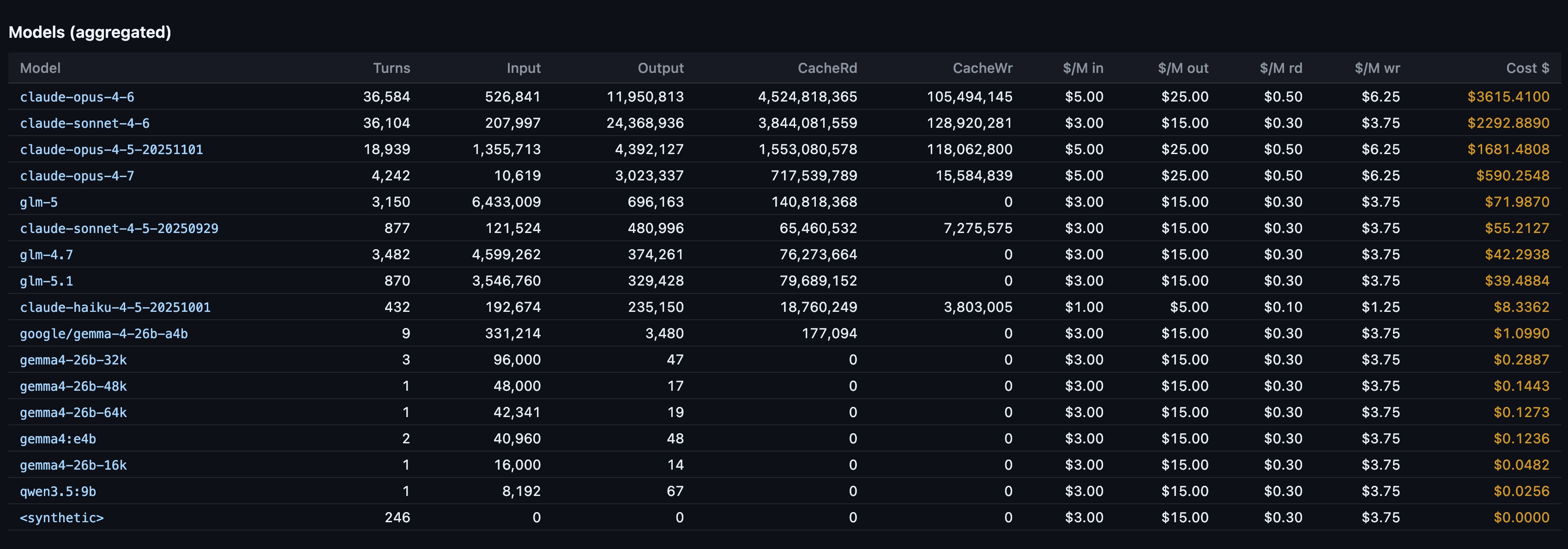
Models aggregate ranking to display total token costs per LLM model in descending order. Besides Claude Opus/Sonnet/Haiku, I also use ZAI GLM-5.x and Google Gemma 4 locally via LM Studio/Ollama, Qwen 3.5 models.
v1.15.0 total HTML export theme and style redesigns to include 4 themes to choose from, Beacon, Console, Lattic, Pulse. The new designs were created with new Claude Design for initial templates to develop further in Claude Code.
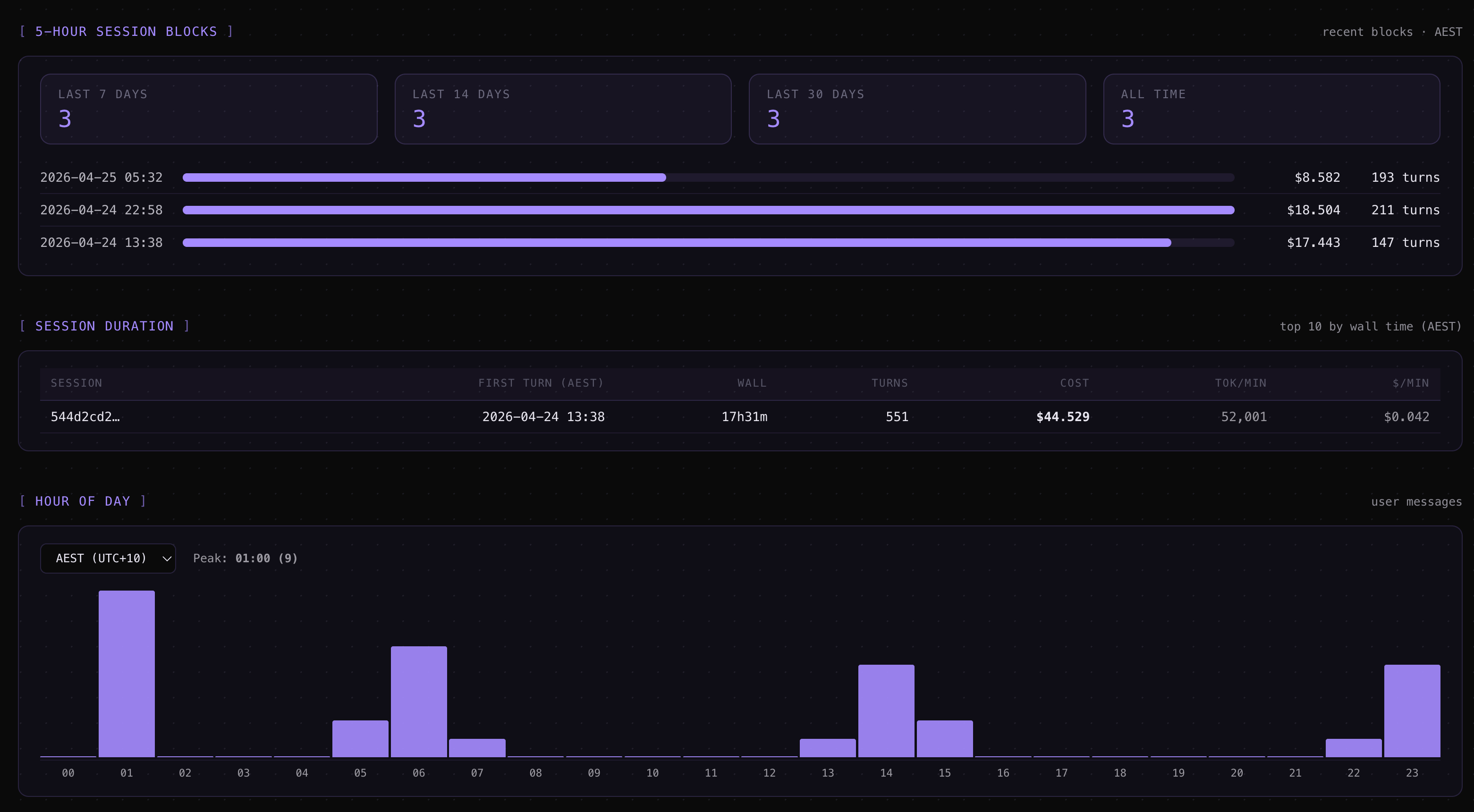
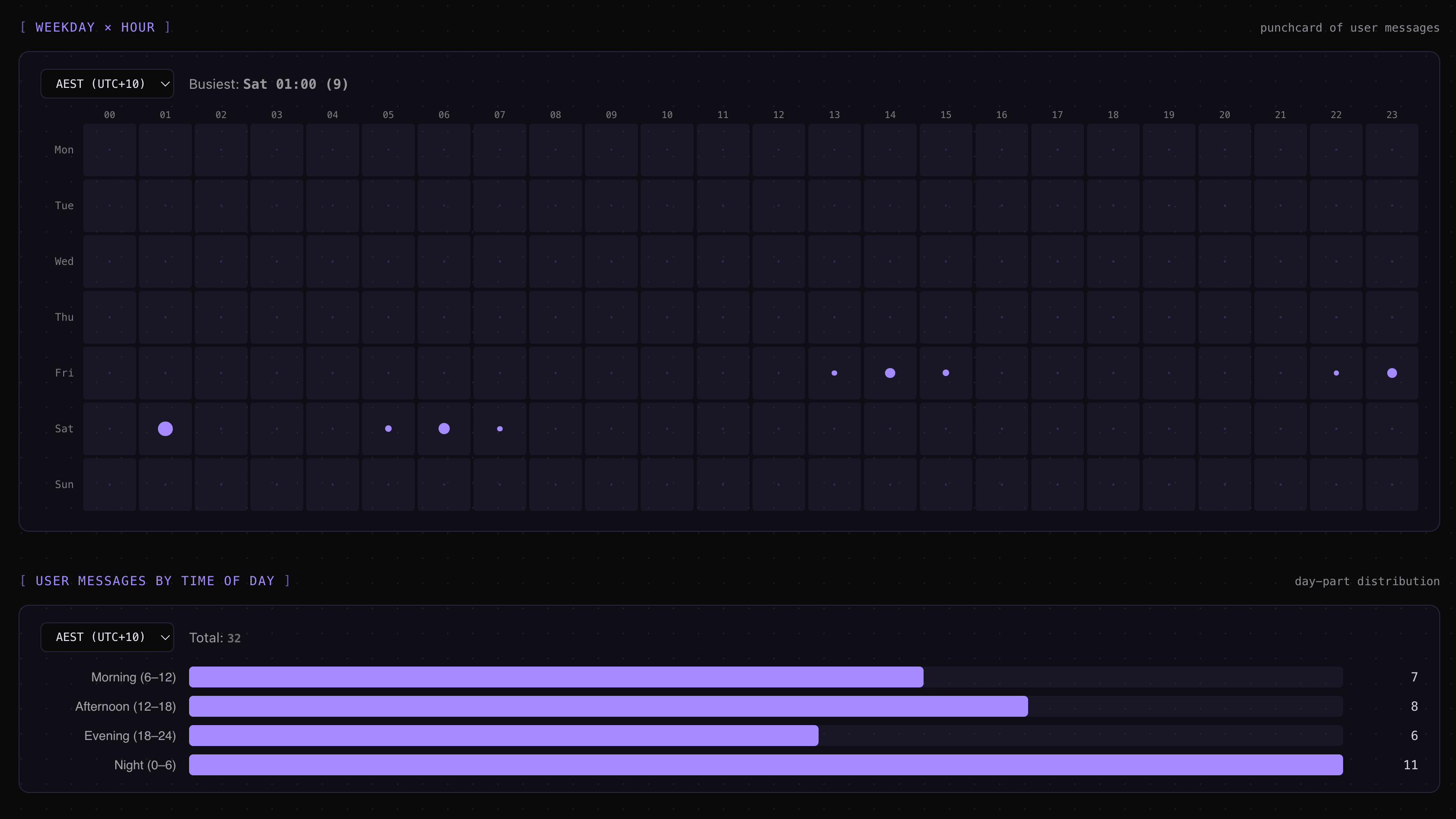
From new details page in v1.15.0
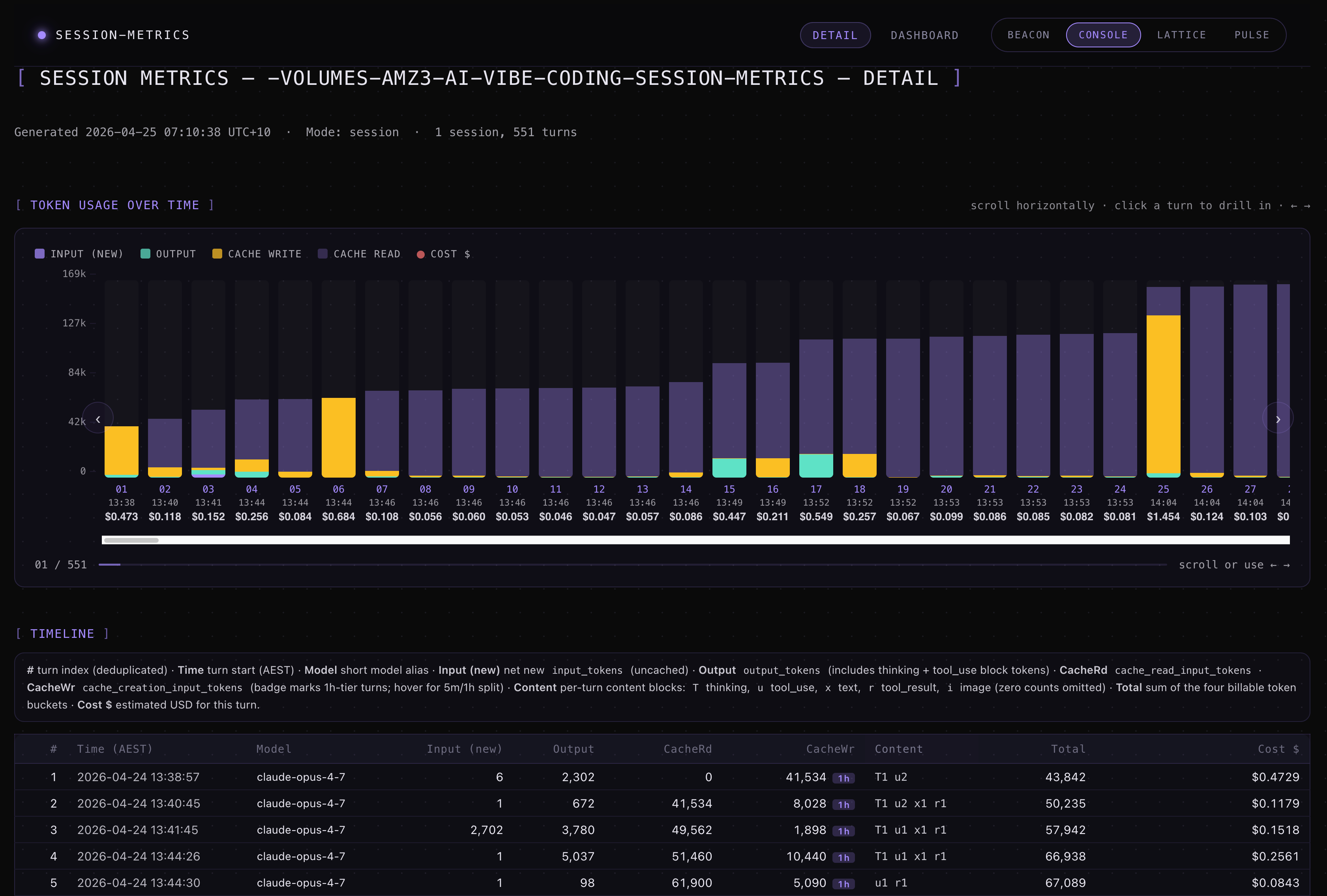
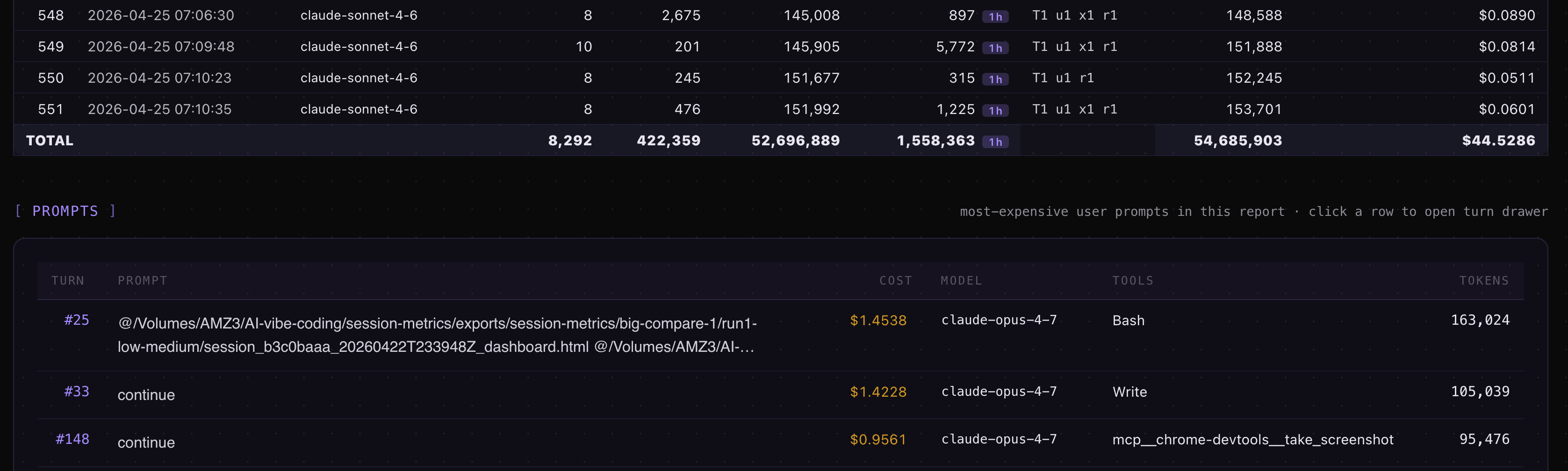

Clicking on turn rows or chart reveals right side overlay with more token usage/cost details - including prompts and tool calls and thinking block counts.
A handful of useful command variants once you’re up and running:
# Current session only
uv run python ~/.claude/plugins/cache/centminmod/session-metrics/skills/session-metrics/scripts/session-metrics.py

# All sessions in a project with per-session subtotals and a grand total
... session-metrics.py --project-cost

# Pick an alternative chart renderer
... session-metrics.py --output html --chart-lib uplot     # MIT-licensed
... session-metrics.py --output html --chart-lib chartjs   # MIT-licensed
... session-metrics.py --output html --chart-lib none      # no JS at all

# Override the timezone if auto-detection picked the wrong one
... session-metrics.py --tz America/Los_Angeles
In practice you won’t type any of those. You’ll ask Claude the question in English and Claude will figure out the flags.
How to install on Claude Code Desktop
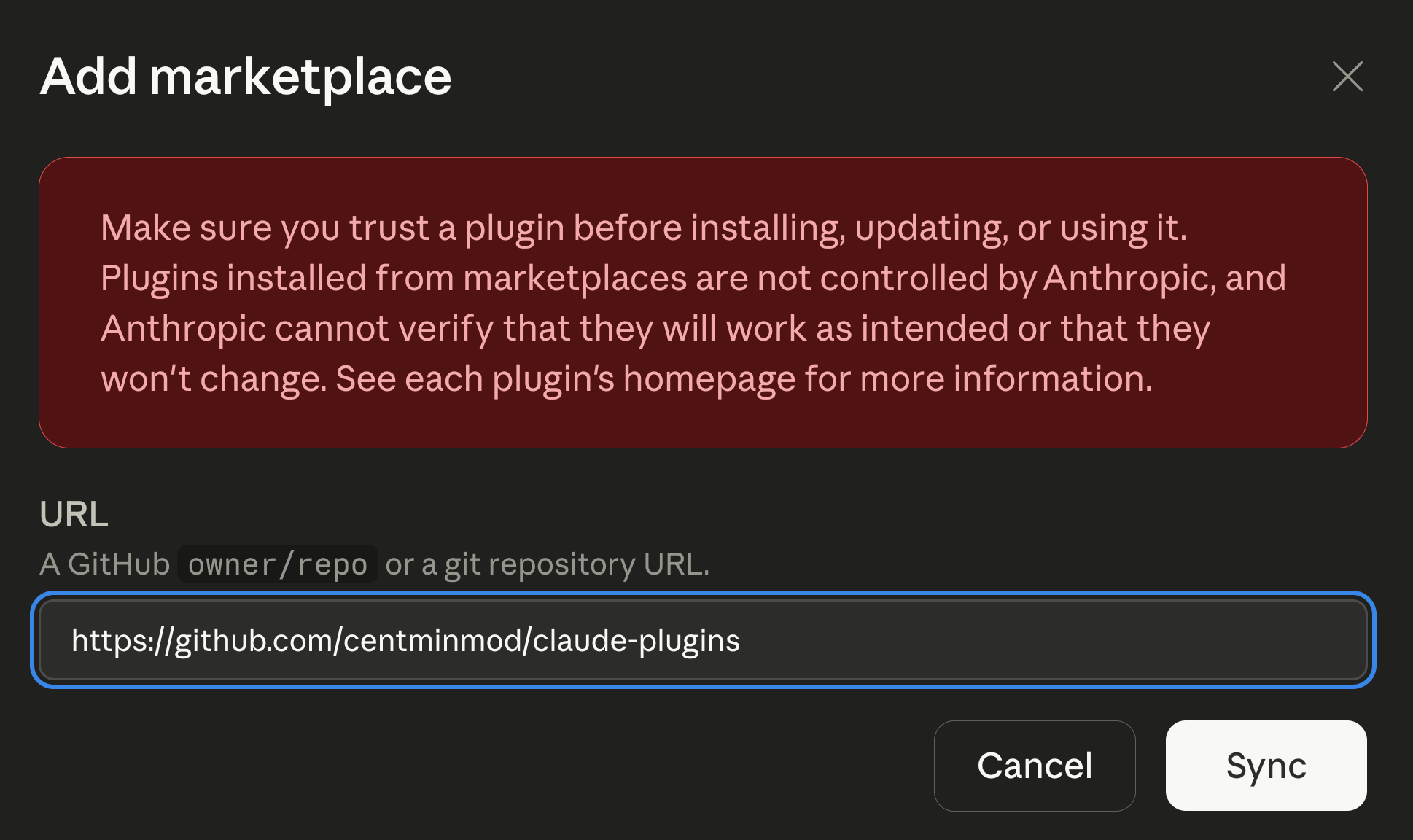
Open Claude desktop app and go to Customize section.
Customize → Personal plugins → Create plugin → Add marketplace
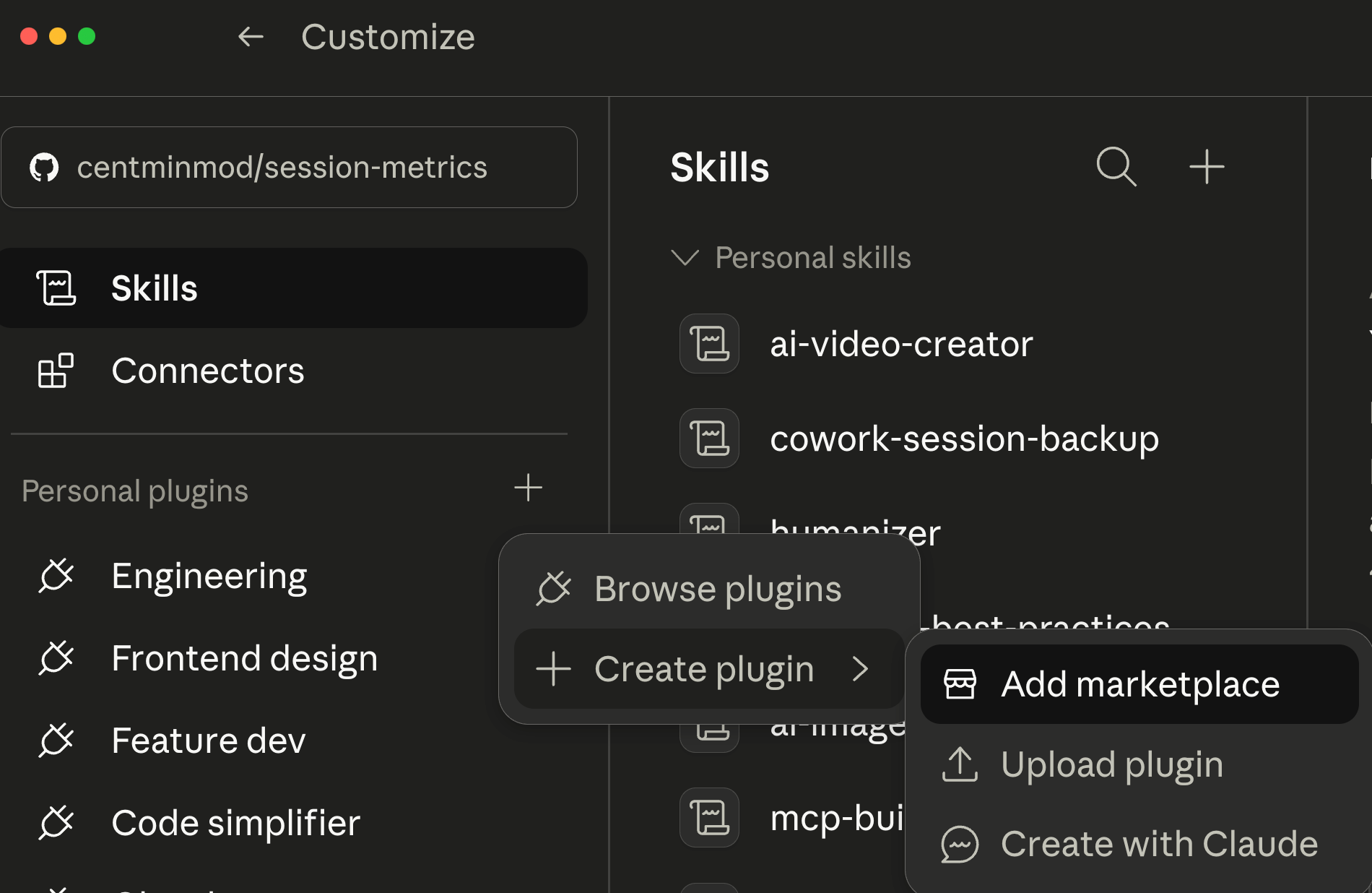
Add marketplace: https://github.com/centminmod/claude-plugins
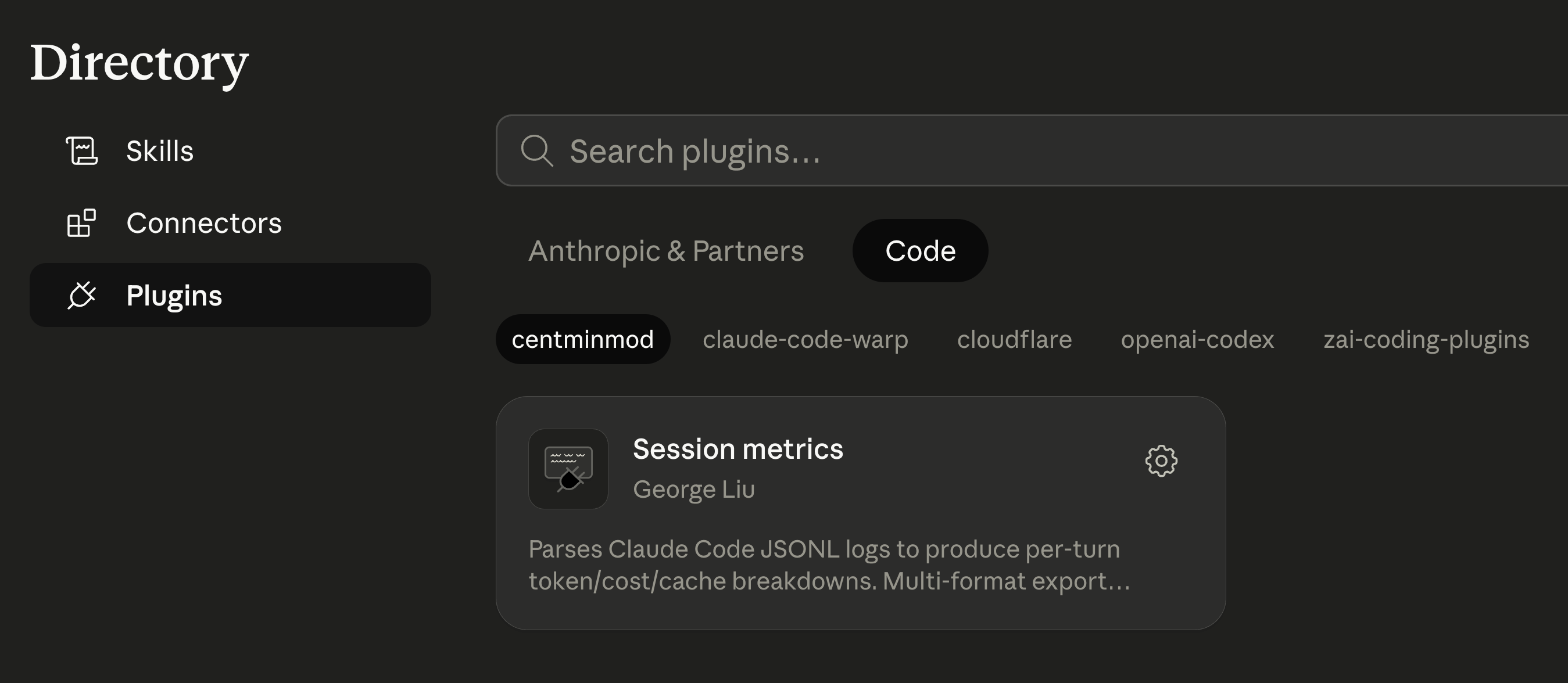
Once marketplace is added, it will be in Directory → Plugins → Code
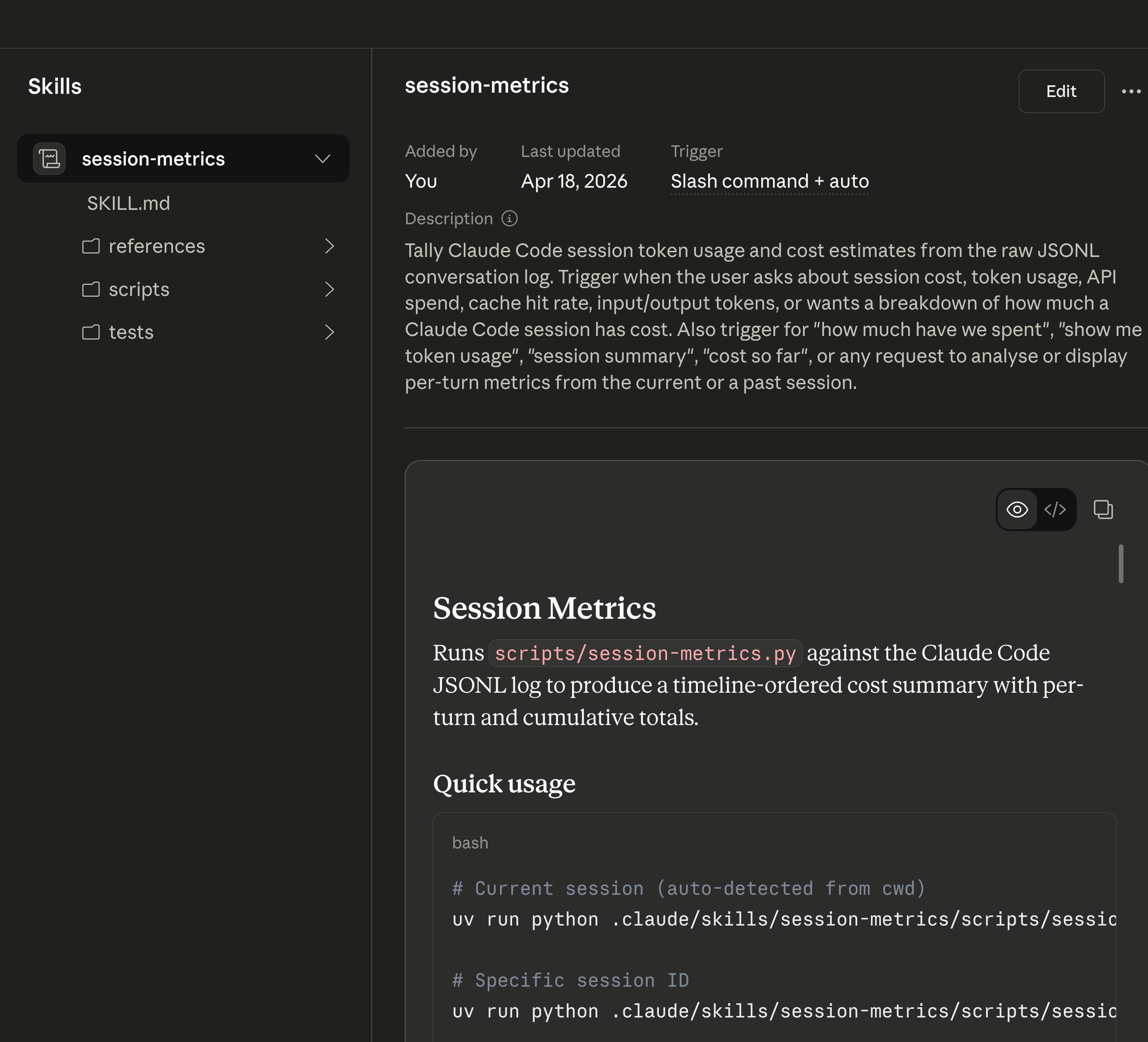
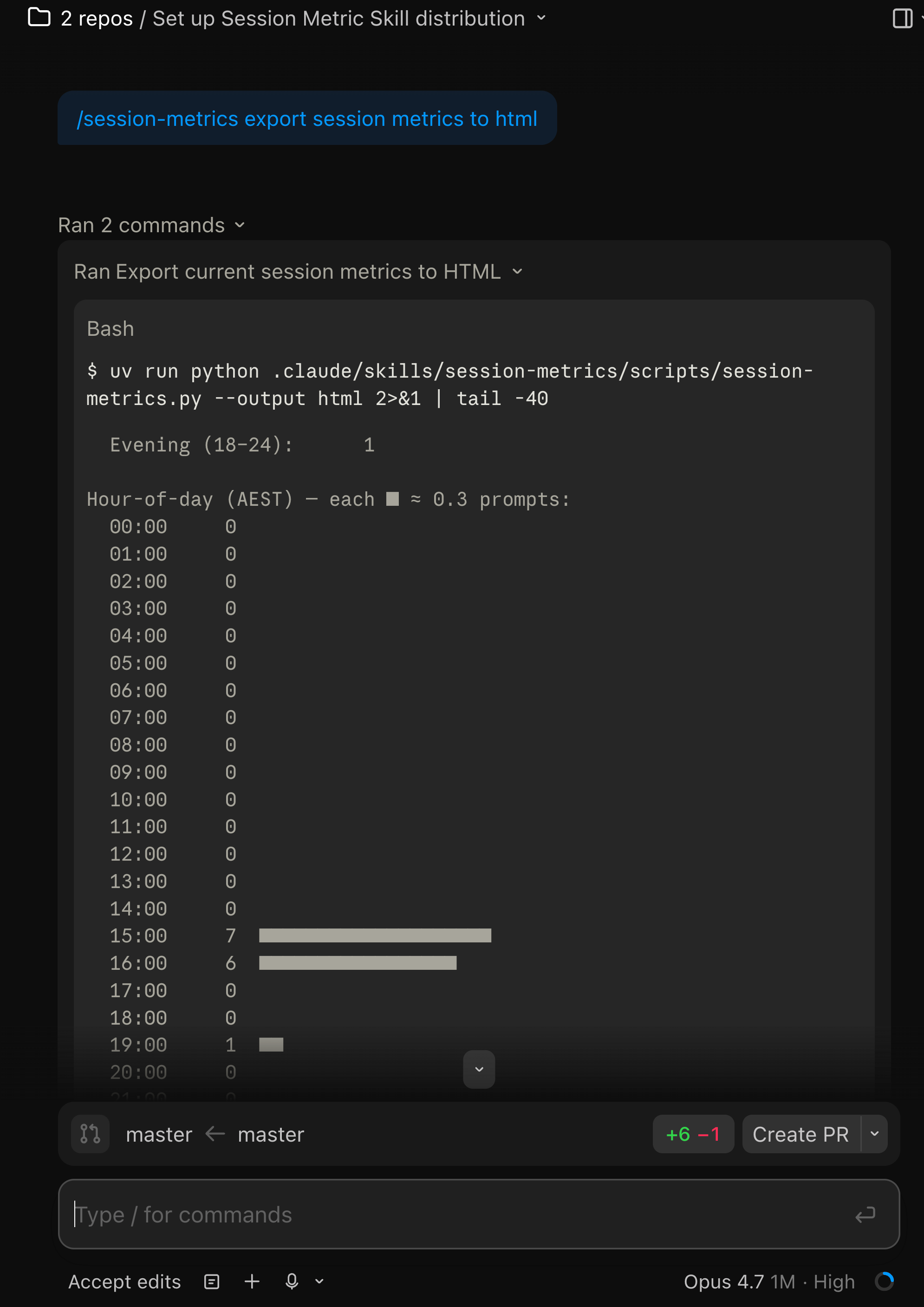
In Claude Code desktop use /session-metric command.

Type:
/session-metrics export session metrics to html
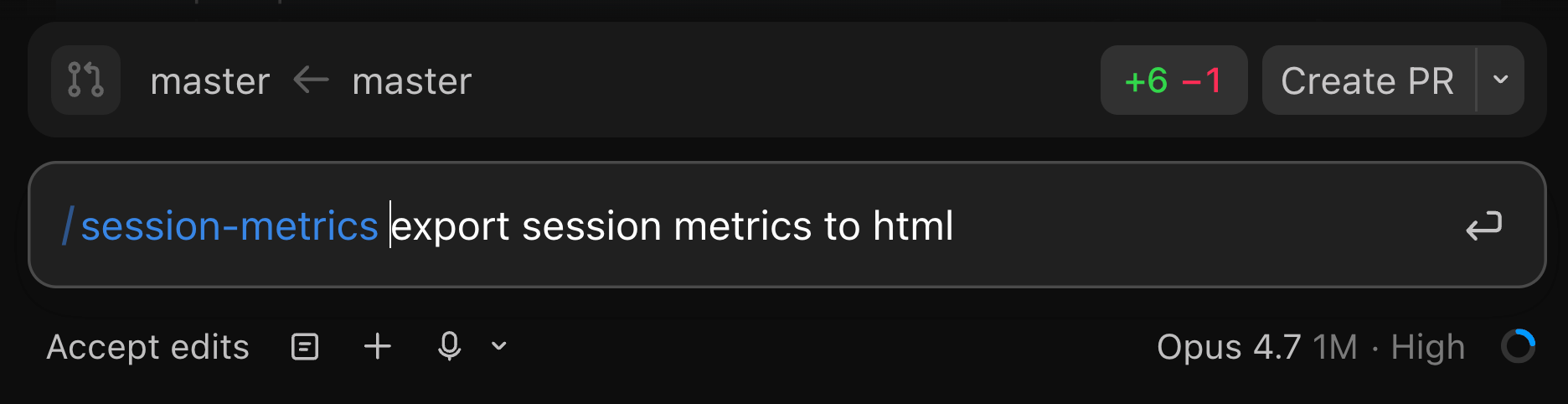
Claude running the session-metric skill.
Within Claude Code desktop app, clicking the dashboard HTML link can open the exported HTML dashboard in the right preview pane.
How to update it
Two ways depending on where you are.
From the /plugin Marketplaces pane, select centminmod and pick Update marketplace. That refetches the manifest, notices the version bump, and updates the installed plugin. The detail screen shows the last-updated timestamp so you can tell at a glance whether you’re current.
Or just type /plugin install session-metrics@centminmod again. Claude Code treats that as “update to latest”. Run /reload-plugins afterwards and the new version is live.
If the Discover UI keeps showing a stale version after an install, run Update marketplace from the Marketplaces pane. That refreshes the catalog and is the cure for the catalog-vs-manifest drift covered in A few gotchas I hit.
How to remove it
If you want to uninstall the plugin but keep the marketplace registered:
/plugin uninstall session-metrics@centminmodIf you want to remove the whole marketplace too:
/plugin marketplace remove centminmodBoth print confirmation and take effect immediately. /reload-plugins picks up the change. You can also do it from the UI - open /plugin, go to Marketplaces, select centminmod, and pick Remove marketplace.
A few gotchas I hit
Two publisher-side things bit me during the publish and smoke-test, captured here so you don’t have to rediscover them.
Catalog-vs-manifest version drift is silent. The Discover UI reads its version field from marketplace.json, not from the per-plugin plugin.json. Bump one without the other and the installed payload is correct but the UI keeps showing the old number. I hit this on v1.3.0 - plugin.json said 1.3.0, marketplace.json still said 1.0.0, and the Discover card kept showing 1.0.0 until I bumped both. The same pattern applies to homepage, description, and category. If you’re standing up your own marketplace, bump both files in lock-step or write a pre-commit check. The consumer-side fix is to run Update marketplace from the Marketplaces pane.
What’s next
The marketplace scaffold is designed to grow. I have a handful of personal Claude Code skills that are candidates for the next plugin slot - including my ai-image-creator and ai-video-creator skills. Whichever lands first gets the same release treatment as this one - one blog post covering what it does, how to install, and the gotchas I found during publish. Subscribe if you want to see them as they ship.
Try the install, ask Claude “how much has this session cost?”, and let me know what the output looks like on a real workload. Bug reports and feature requests are welcome on the session-metrics GitHub issues tab.
If you’re interested in practical AI building for web apps, developer workflows, and infrastructure, subscribe for future posts. You can also follow my shorter updates on Threads (@george_sl_liu) and Bluesky (@georgesl.bsky.social) or subscribe and follow along.
Nice work. Thanks for sharing!