
Running Google Gemma 4 Locally With LM Studio’s New Headless CLI & Claude Code
LM Studio 0.4.0 introduced llmster and the lms CLI. Here is how I set up Gemma 4 26B for local inference on macOS that can be used with Claude Code.

Why run models locally?
Cloud AI APIs are great until they are not. Rate limits, usage costs, privacy concerns, and network latency all add up. For quick tasks like code review, drafting, or testing prompts, a local model that runs entirely on your hardware has real advantages: zero API costs, no data leaving your machine, and consistent availability.
Google’s Gemma 4 is interesting for local use because of its mixture-of-experts architecture. The 26B parameter model only activates 4B parameters per forward pass, which means it runs well on hardware that could never handle a dense 26B model. On my 14” MacBook Pro M4 Pro with 48 GB of unified memory, it fits comfortably and generates at 51 tokens per second. Though there’s significant slowdowns when used within Claude Code from my experience.
Update: Google Gemma 4 can also be used locally with Ollama. Read the follow up article on how you can use Ollama with Gemma 4.
The Gemma 4 model family
Google released Gemma 4 as a family of four models, not just one. The lineup spans a wide range of hardware targets:
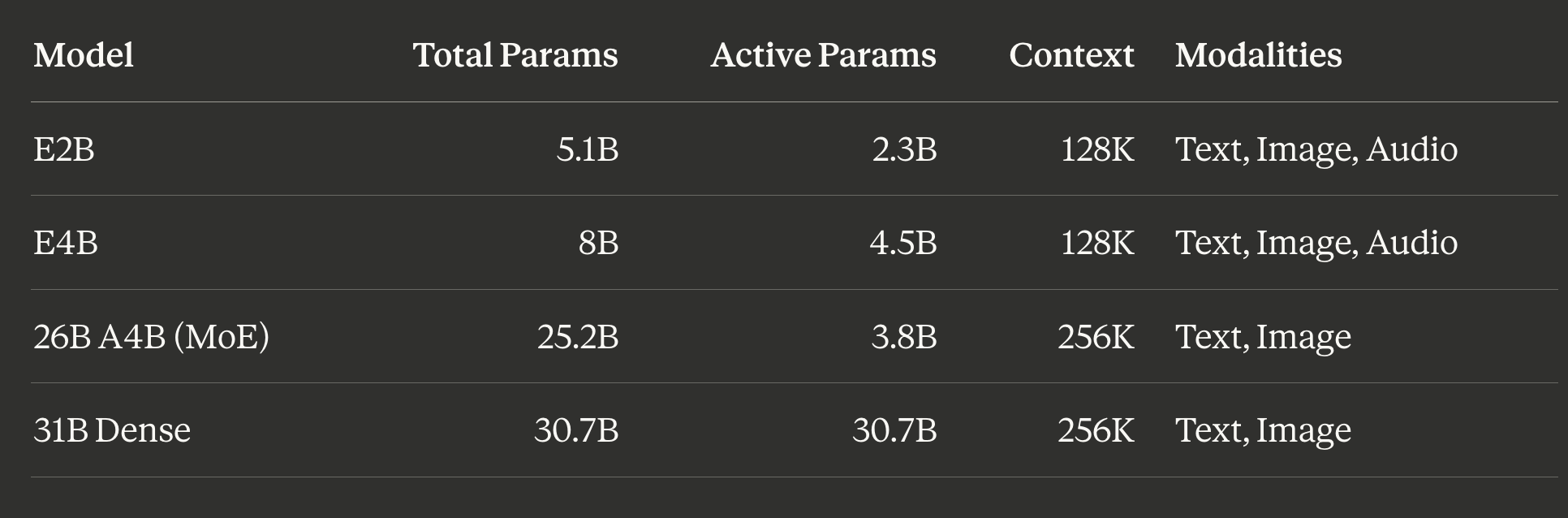
The “E” models (E2B, E4B) use Per-Layer Embeddings to optimize for on-device deployment and are the only variants that support audio input (speech recognition and translation). The 31B dense model is the most capable, scoring 85.2% on MMLU Pro and 89.2% on AIME 2026.
Why I picked the 26B-A4B. The mixture-of-experts architecture is the key. It has 128 experts plus 1 shared expert, but only activates 8 experts (3.8B parameters) per token. A common rule of thumb estimates MoE dense - equivalent quality as roughly sqrt(total x active parameters), which puts this model around 10B effective. In practice, it delivers inference cost comparable to a 4B dense model with quality that punches well above that weight class. On benchmarks, it scores 82.6% on MMLU Pro and 88.3% on AIME 2026, close to the dense 31B (85.2% and 89.2%) while running dramatically faster.
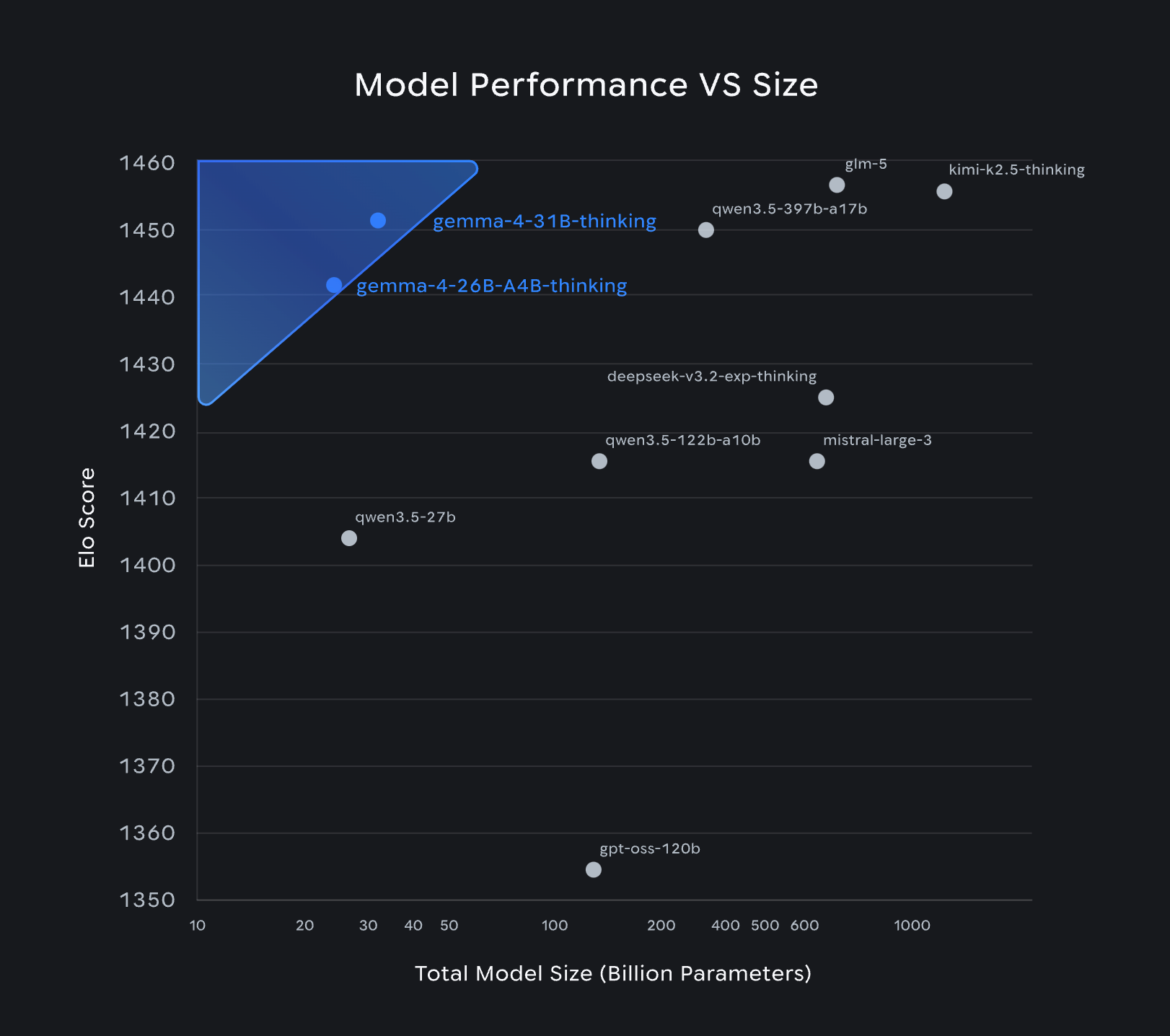
The chart below tells the story. It plots Elo score against total model size on a log scale for recent open-weight models with thinking enabled. The blue-highlighted region in the upper left is where you want to be: high performance, small footprint.
Gemma 4 26B-A4B (Elo ~1441) sits firmly in that zone, punching well above its 25.2B parameter weight. The 31B dense variant scores slightly higher (~1451) but is still remarkably compact. For context, models like Qwen 3.5 397B-A17B (~1450 Elo) and GLM-5 (~1457 Elo) need 100-600B total parameters to reach similar scores. Kimi-K2.5 (~1457 Elo) requires over 1,000B. The 26B-A4B achieves competitive Elo with a fraction of the parameters, which translates directly into lower memory requirements and faster local inference.
This is what makes MoE models transformative for local use. You do not need a cluster or a high-end GPU rig to run a model that competes with 400B+ parameter behemoths. A laptop with 48 GB of unified memory is enough.
For local inference on a 48 GB Mac, this is the sweet spot. The dense 31B would consume more memory and generate tokens slower because every parameter participates in every forward pass. The E4B is lighter but noticeably less capable. The 26B-A4B gives you 256K max context, vision support (useful for analyzing screenshots and diagrams), native function/tool calling, and reasoning with configurable thinking modes, all at 51 tokens/second on my hardware.
What changed in LM Studio 0.4.0
LM Studio has been a popular desktop app for running local models for a while. Version 0.4.0 changed the architecture fundamentally by introducing llmster, the core inference engine extracted from the desktop app and packaged as a standalone server.
The practical result: you can now run LM Studio entirely from the command line using the lms CLI. No GUI required. This makes it usable on headless servers, in CI/CD pipelines, SSH sessions, or just for developers who prefer staying in the terminal.
Key additions in 0.4.0:
llmster daemon: a background service that manages model loading and inference without the desktop app
lmsCLI: full command-line interface for downloading, loading, chatting, and serving modelsParallel request processing: continuous batching instead of sequential queuing, so multiple requests to the same model run concurrently
Stateful REST API: a new
/v1/chatendpoint that maintains conversation history across requestsMCP integration: local Model Context Protocol support with permission-key gating
Installation
Install the lms CLI with a single command:
# Linux/Mac
curl -fsSL https://lmstudio.ai/install.sh | bash

# Windows
irm https://lmstudio.ai/install.ps1 | iex
Then start the headless daemon:
lms daemon upOn macOS, update both inference runtimes:
lms runtime update llama.cpp
lms runtime update mlx
Downloading Gemma 4
With the daemon running, download Google’s Gemma 4 26B model:
lms get google/gemma-4-26b-a4bThe CLI shows you the variant it will download (Q4_K_M quantization by default, 17.99 GB) and asks for confirmation:
   ↓ To download: model google/gemma-4-26b-a4b - 64.75 KB
   └─ ↓ To download: Gemma 4 26B A4B Instruct Q4_K_M [GGUF] - 17.99 GB

About to download 17.99 GB.

? Start download?
❯ Yes
  No
  Change variant selection
If you already have the model, the CLI tells you and shows the load command:
✔ Start download? yes
Model already downloaded. To use, run: lms load google/gemma-4-26b-a4b
Checking your local model library
List all downloaded models:
lms lsYou have 10 models, taking up 118.17 GB of disk space.
LLM PARAMS ARCH SIZE DEVICE
gemma-3-270m-it-mlx 270m gemma3_text 497.80 MB Local
google/gemma-4-26b-a4b (1 variant) 26B-A4B gemma4 17.99 GB Local
gpt-oss-20b-mlx 20B gpt_oss 22.26 GB Local
llama-3.2-1b-instruct 1B Llama 712.58 MB Local
nvidia/nemotron-3-nano (1 variant) 30B nemotron_h 17.79 GB Local
openai/gpt-oss-20b (1 variant) 20B gpt-oss 12.11 GB Local
qwen/qwen3.5-35b-a3b (1 variant) 35B-A3B qwen35moe 22.07 GB Local
qwen2.5-0.5b-instruct-mlx 0.5B Qwen2 293.99 MB Local
zai-org/glm-4.7-flash (1 variant) 30B glm4_moe_lite 24.36 GB Local
EMBEDDING PARAMS ARCH SIZE DEVICE
text-embedding-nomic-embed-text-v1.5 Nomic BERT 84.11 MB LocalWorth noting: several of these models use mixture-of-experts architectures (Gemma 4, Qwen 3.5, GLM 4.7 Flash). MoE models punch above their weight for local inference because only a fraction of parameters activate per token.
Running an interactive chat
Start a chat session with stats enabled to see performance numbers:
lms chat google/gemma-4-26b-a4b --stats ╭─────────────────────────────────────────────────╮
│ 👾 lms chat │
│ Type exit or Ctrl+C to quit │
│ │
│ Chatting with google/gemma-4-26b-a4b │
│ │
│ Try one of the following commands: │
│ /model - Load a model (type /model to see list) │
│ /download - Download a model │
│ /clear - Clear the chat history │
│ /help - Show help information │
╰─────────────────────────────────────────────────╯With --stats, you get prediction metrics after each response:
Prediction Stats:
  Stop Reason: eosFound
  Tokens/Second: 51.35
  Time to First Token: 1.551s
  Prompt Tokens: 39
  Predicted Tokens: 176
  Total Tokens: 215
51 tokens/second on a 14” MacBook Pro M4 Pro (48 GB) with a 26B model is solid. Time to first token at 1.5 seconds is responsive enough for interactive use.
Checking loaded models and memory
See what is currently loaded:
lms psIDENTIFIER MODEL STATUS SIZE CONTEXT PARALLEL DEVICE TTL
google/gemma-4-26b-a4b google/gemma-4-26b-a4b IDLE 17.99 GB 48000 2 Local 60m / 1hThe model occupies 17.99 GB in memory with a 48K context window and supports 2 parallel requests. The TTL (time-to-live) auto-unloads the model after 1 hour of idle time, freeing memory without manual intervention.
For detailed model metadata, pipe through jq:
lms ps --json | jqlms ps --json | jq
[
{
"type": "llm",
"modelKey": "google/gemma-4-26b-a4b",
"format": "gguf",
"displayName": "Gemma 4 26B A4B",
"publisher": "google",
"path": "google/gemma-4-26b-a4b",
"sizeBytes": 17990911801,
"indexedModelIdentifier": "google/gemma-4-26b-a4b",
"deviceIdentifier": null,
"paramsString": "26B-A4B",
"architecture": "gemma4",
"quantization": {
"name": "Q4_K_M",
"bits": 4
},
"variants": [
"google/gemma-4-26b-a4b@q4_k_m"
],
"selectedVariant": "google/gemma-4-26b-a4b@q4_k_m",
"identifier": "google/gemma-4-26b-a4b",
"ttlMs": 3600000,
"lastUsedTime": 1775316805638,
"vision": true,
"trainedForToolUse": true,
"maxContextLength": 262144,
"contextLength": 48000,
"status": "idle",
"queued": 0,
"parallel": 2
}
]Key fields from the JSON output:
"architecture": "gemma4"with"quantization": {"name": "Q4_K_M", "bits": 4}"vision": trueand"trainedForToolUse": true- Gemma 4 supports both image input and tool calling"maxContextLength": 262144- the model supports up to 256K context, though the default load is 48K"parallel": 2- two concurrent inference requests via continuous batching
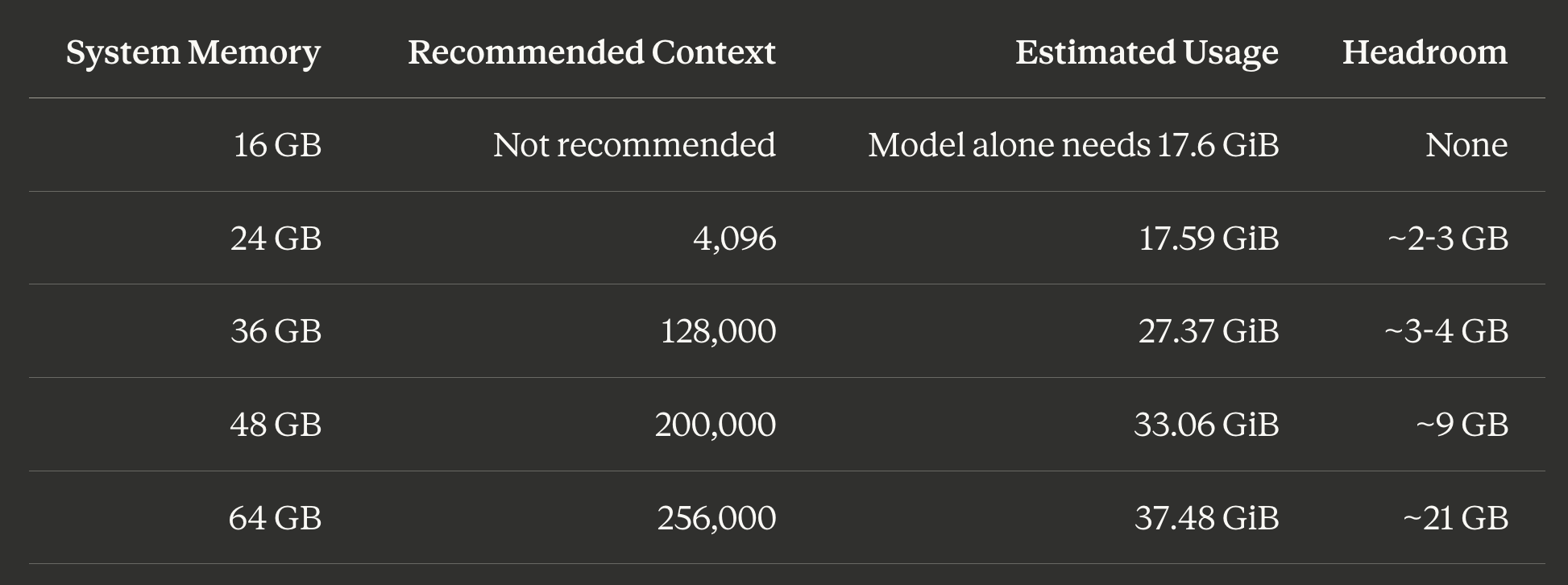
Memory estimates by context length
Before loading a model, you can estimate memory requirements at different context lengths using --estimate-only. I wrote a small script to test across the full range:
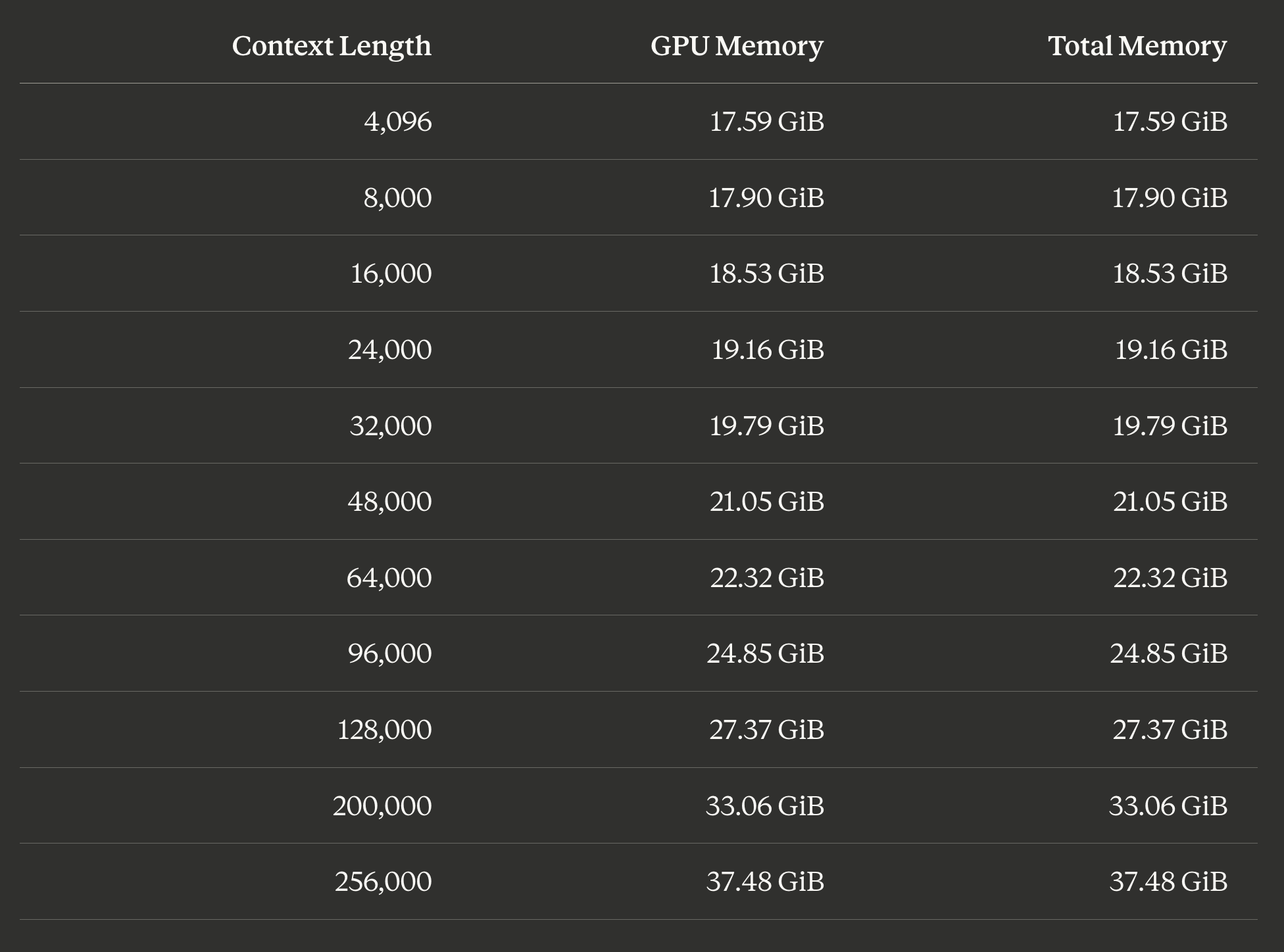
The base model takes about 17.6 GiB regardless of context. Each doubling of context length adds roughly 3-4 GiB. At the default 48K context, you need about 21 GiB. On my 48 GB MacBook Pro, I can push to the full 256K context at 37.48 GiB and still have about 10 GB free for the OS and other apps. A 36 GB Mac could comfortably run 200K context with headroom.
The estimation command is straightforward:
lms load google/gemma-4-26b-a4b --estimate-only --context-length 48000
Model: google/gemma-4-26b-a4b
Context Length: 48,000
Estimated GPU Memory:   21.05 GiB
Estimated Total Memory: 21.05 GiB

Estimate: This model may be loaded based on your resource guardrails settings.
This is useful for capacity planning. If you want to run Gemma 4 alongside other applications, check the estimate at your target context length first.
Here is the full script I used to generate the table above. You can swap in any model name and context length list to profile a different model:
#!/usr/bin/env bash

model="google/gemma-4-26b-a4b"
contexts=(4096 8000 16000 24000 32000 48000 64000 96000 128000 200000 256000)

table_contexts=()
table_gpu=()
table_total=()

for ctx in "${contexts[@]}"; do
  output="$(lms load "$model" --estimate-only --context-length "$ctx" 2>&1)"

  parsed_context="$(printf '%s\n' "$output" | awk -F': ' '/^Context Length:/ {print $2; exit}')"
  parsed_gpu="$(printf '%s\n' "$output" | awk -F': +' '/^Estimated GPU Memory:/ {print $2; exit}')"
  parsed_total="$(printf '%s\n' "$output" | awk -F': +' '/^Estimated Total Memory:/ {print $2; exit}')"

  table_contexts+=("${parsed_context:-$ctx}")
  table_gpu+=("${parsed_gpu:-N/A}")
  table_total+=("${parsed_total:-N/A}")
done

printf '| Model | Context Length | GPU Memory | Total Memory |\n'
printf '|---|---:|---:|---:|\n'
for i in "${!table_contexts[@]}"; do
  printf '| %s | %s | %s | %s |\n' \
    "$model" "${table_contexts[$i]}" "${table_gpu[$i]}" "${table_total[$i]}"
done
Tuning model loading for your hardware
The default lms load or lms chat commands pick reasonable defaults, but you can tune several parameters to match your specific hardware and use case. Here is a practical decision framework.
Context length: match it to your memory budget
The memory table above is your starting point. Subtract the OS overhead (macOS typically uses 4-6 GB) from your total memory, then find the largest context length that fits.
Load with a specific context length:
lms load google/gemma-4-26b-a4b --context-length 128000If you are unsure, always run --estimate-only first. It accounts for flash attention and vision model overhead in its calculation.
GPU offloading
On Apple Silicon, the unified memory architecture means CPU and GPU share the same memory pool, so --gpu mostly controls how much computation runs on the GPU versus CPU cores. The default auto setting works well, but you can force full GPU offloading:
lms load google/gemma-4-26b-a4b --gpu=1.0Use --gpu=max to offload everything possible. On discrete GPU systems (Linux/Windows with NVIDIA cards), this becomes more important because GPU VRAM and system RAM are separate. If your model does not fit entirely in VRAM, partial offloading (--gpu=0.5) splits layers between GPU and CPU, trading some speed for the ability to run larger models.
Parallel requests and continuous batching
LM Studio supports concurrent inference through continuous batching, where multiple requests are dynamically combined into a single computation batch. This is useful when serving the model to multiple clients or running parallel tool calls. The feature requires the llama.cpp runtime (v2.0.0+) and is not yet available for the MLX backend.
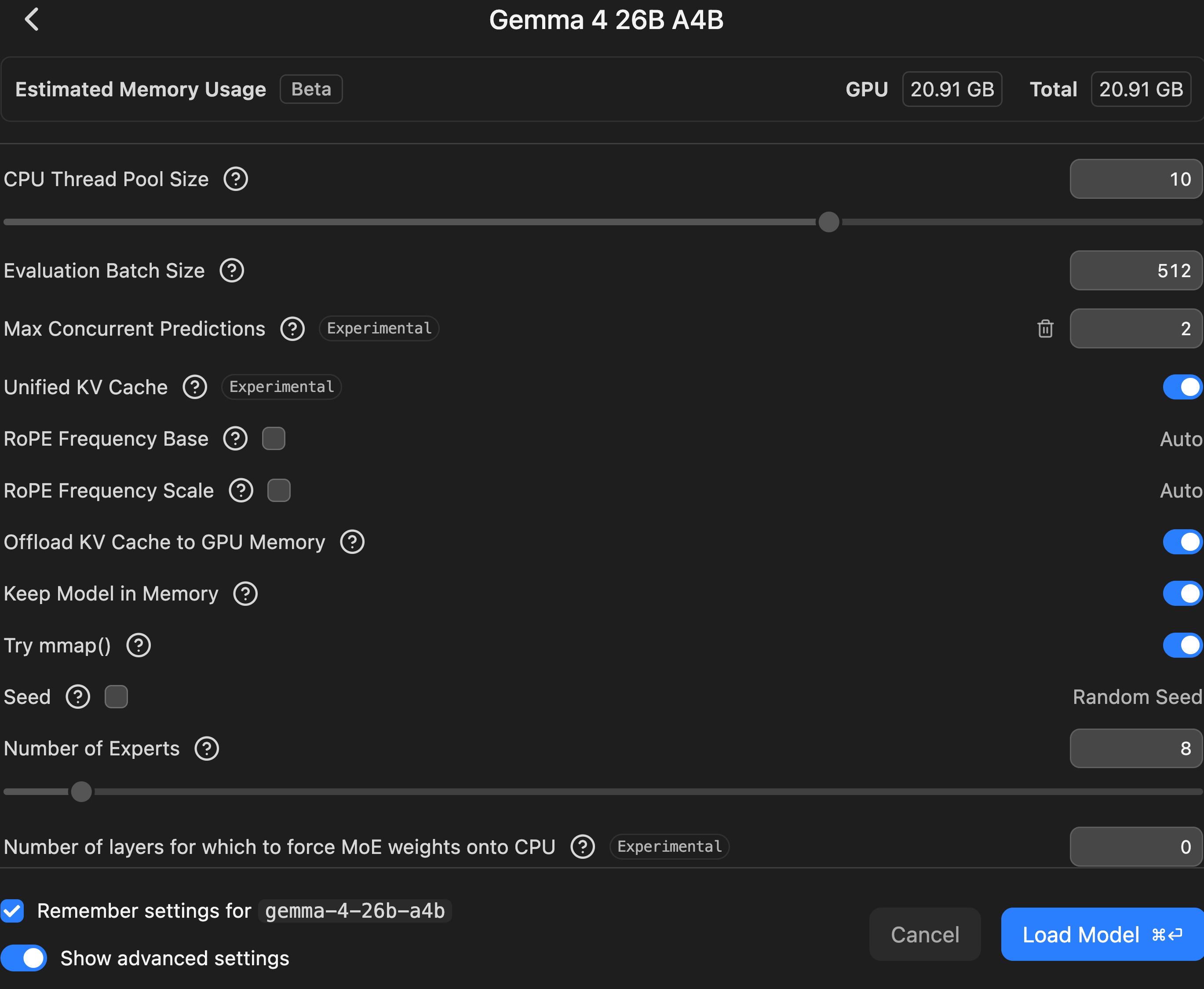
Configure it through the GUI: open the model loader, toggle Manually choose model load parameters, select a model, then toggle Show advanced settings to set Max Concurrent Predictions (defaults to 4). There is no CLI flag for this setting; it is configured through the desktop app or per-model defaults.
Each parallel slot consumes additional memory proportional to the context length, so on memory-constrained systems, reduce the parallel count or lower the context length to compensate. With Gemma 4 on 48 GB, 2 parallel slots at 48K context is a good balance.
TTL: auto-unload idle models
The time-to-live setting automatically unloads models after a period of inactivity, freeing memory:
lms load google/gemma-4-26b-a4b --ttl 1800That sets a 30-minute idle timeout (value is in seconds). The default is 3600 seconds (1 hour). For shared server setups where multiple models might be needed, shorter TTLs help cycle between models without manual lms unload commands. Set TTL to 0 or -1 to disable auto-unloading.
Per-model defaults
If you always load Gemma 4 with the same settings, save them as per-model defaults through the desktop app. Navigate to My Models, click the gear icon next to the model, and configure your preferred GPU offloading, context size, and flash attention settings. These defaults apply everywhere, including when loading via lms load from the CLI.
Speculative decoding
LM Studio supports speculative decoding for dense models, which pairs your main model with a smaller “draft” model to speed up generation. The draft model proposes tokens quickly, and the main model verifies them in batch, which is faster than generating each token independently.
However, speculative decoding is problematic for MoE models like Gemma 4 26B-A4B. During verification, the main model must load the union of all experts activated across all speculative tokens. Since different tokens route to different experts, this blows up memory bandwidth usage and can actually slow things down. Benchmarks on Mixtral showed a 39% speedup on code but a 54% slowdown on math with the same settings, meaning no single configuration works reliably. This is an active research area with approaches like MoE-Spec (expert budgeting) and SP-MoE (expert prefetching) working to solve it, and some newer MoE architectures like Qwen 3.5’s hybrid design are more amenable to speculative approaches. For now, skip speculative decoding with Gemma 4 26B-A4B and rely on its already-fast MoE inference instead.
Flash attention
Flash attention is an optimization that reduces memory usage for the KV cache during inference, letting you fit longer context lengths in the same memory. It is available per-model in LM Studio’s settings. For Gemma 4 on Apple Silicon, enabling flash attention can reduce memory usage at higher context lengths by a meaningful margin. The --estimate-only flag accounts for flash attention in its calculations, so check estimates with and without to see the difference.
The LM Studio desktop app
Everything above used the headless CLI, but LM Studio also ships a full macOS desktop app. The GUI is useful for visual monitoring and quick experiments before committing to a CLI workflow.
The screenshot below shows the desktop app’s server view with Gemma 4 loaded. A few things worth noting:
Server status shows “Running” with the local endpoint at
http://192.168.1.121:1234
, reachable by any device on the network
Loaded Models displays the active model with live stats: 29 generations, 1,087 tokens processed, 17.99 GB in memory
Supported endpoints include LM Studio API, OpenAI-compatible, and Anthropic-compatible formats, with
POST /v1/messagesfor the Anthropic protocolDeveloper Logs stream prompt processing progress in real time, useful for watching long prompts like code analysis work through the model
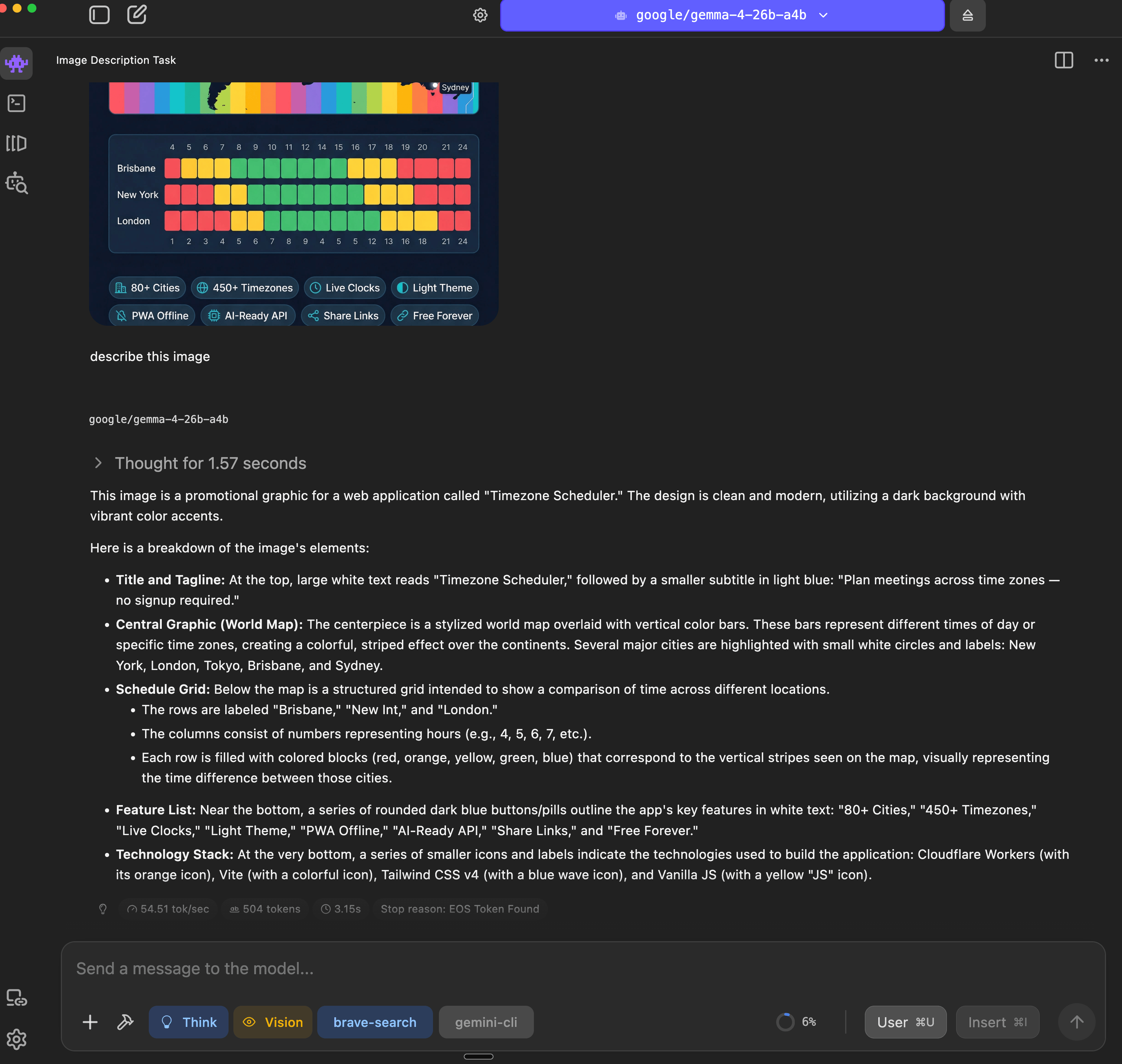
The desktop app also supports Gemma 4’s vision capabilities. In below screenshot, you can see the model analyzing an image of the Timezone Scheduler promotional graphic. It correctly identifies the title, world map with timezone color bars, the schedule grid comparing Brisbane/New York/London, feature badges, and the tech stack icons at the bottom. It generated 504 tokens at 54.51 tok/sec with a 3.15s time to first token.
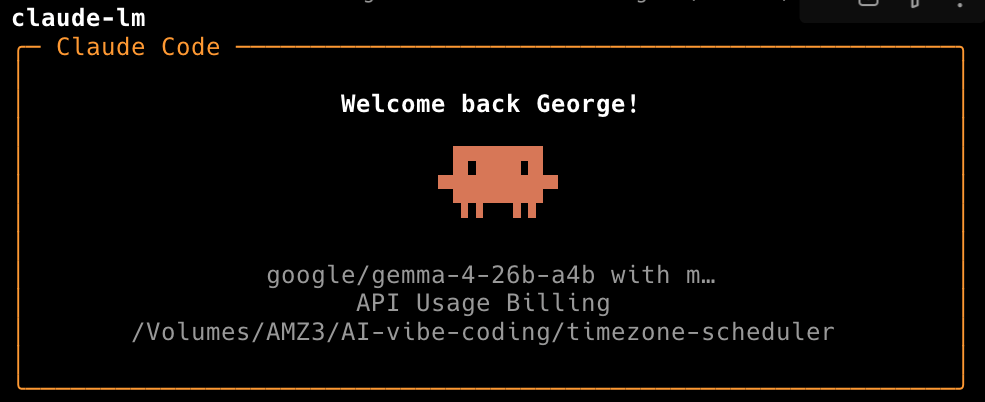
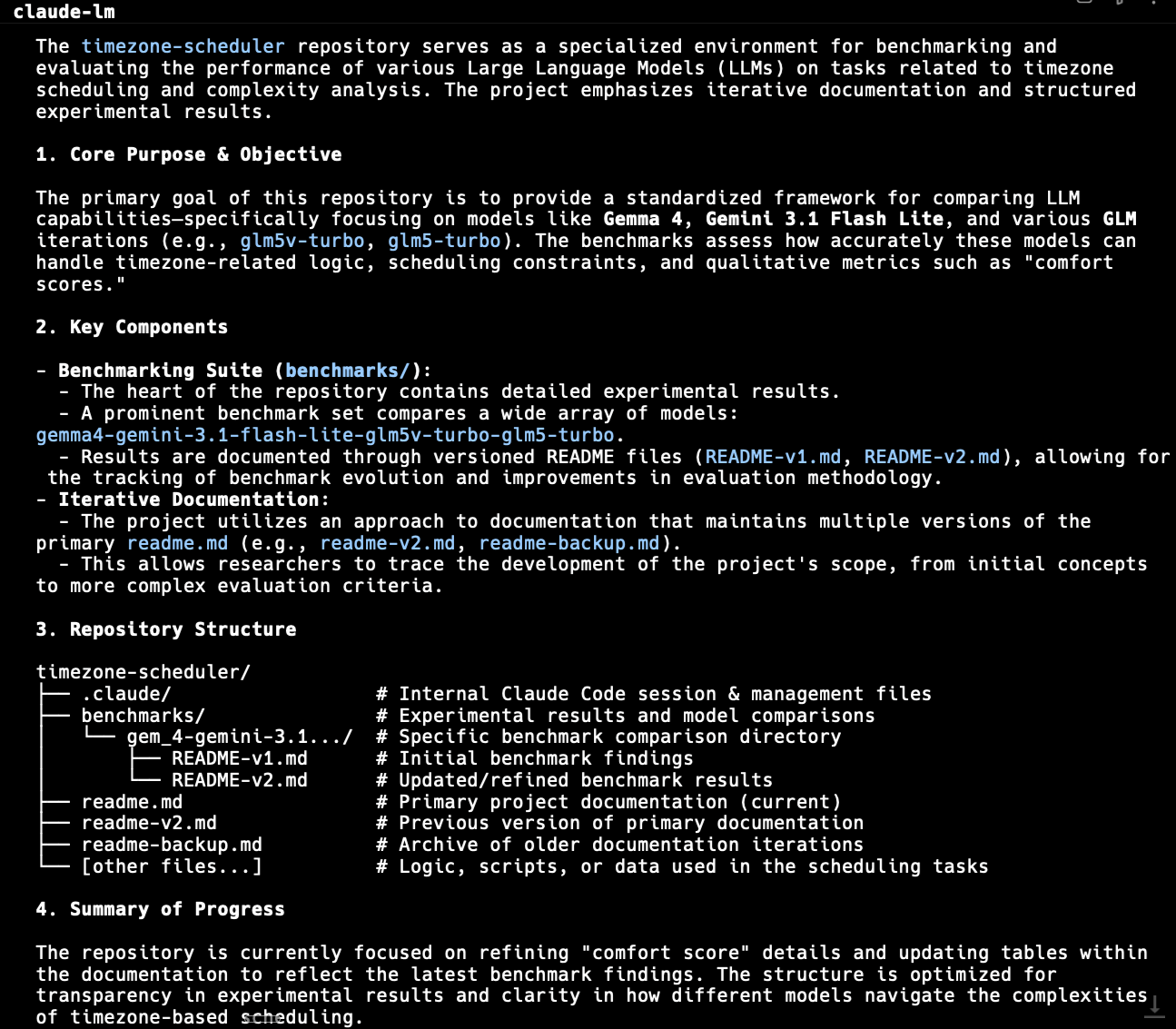
Claude Code alias claude-lm with Google Gemma 4 analysing my Timezones Scheduler benchmark comparison GitHub repository.
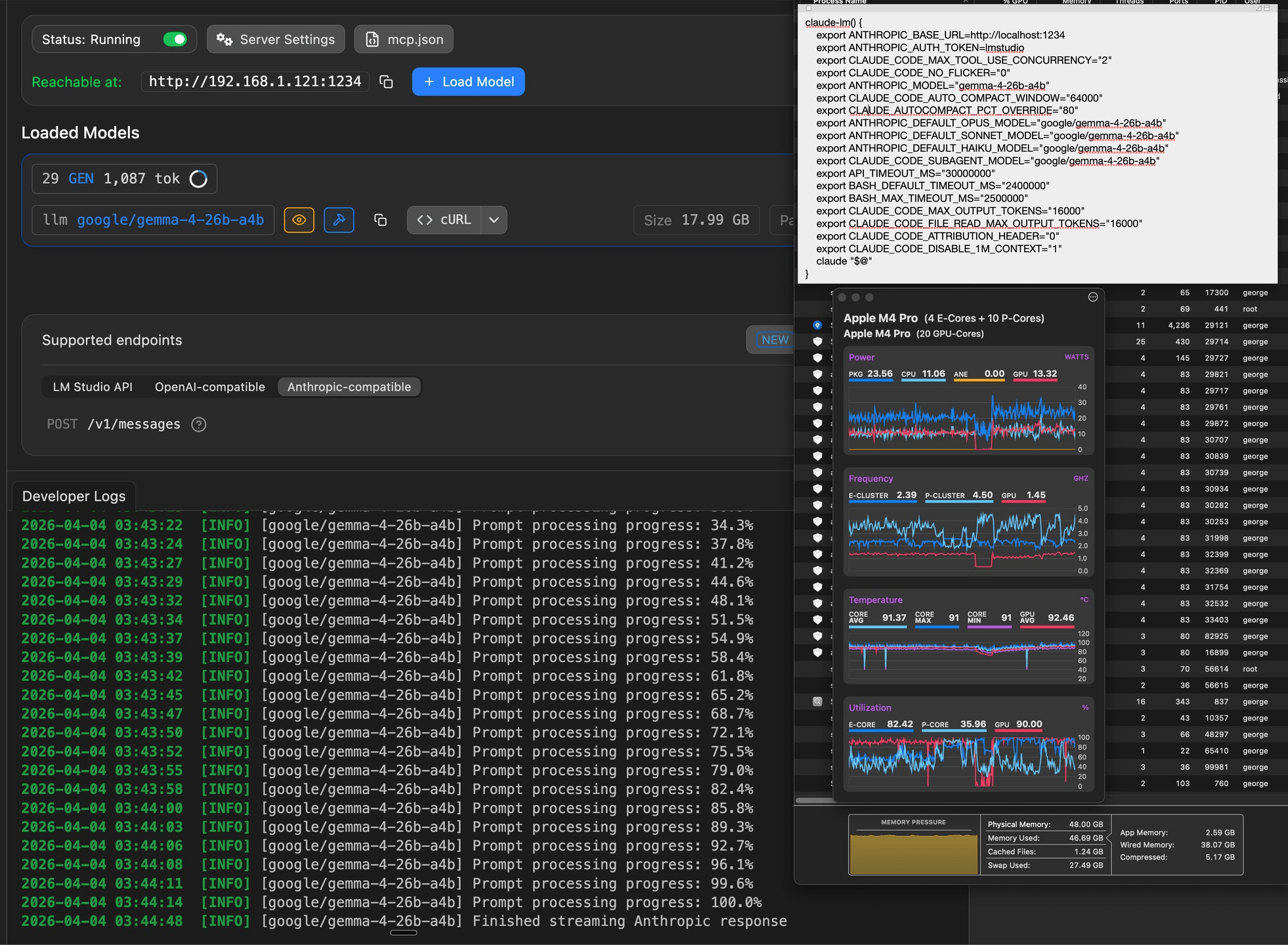
The system monitor overlay in the screenshots tells the real story of what local inference looks like on hardware. On my M4 Pro (4 E-Cores + 10 P-Cores, 20 GPU-Cores):
Memory pressure: 46.69 GB used out of 48.00 GB physical, with 38.07 GB wired memory (that is mostly the model plus context). Swap used: 27.49 GB. The system stays responsive despite near-full memory utilization
GPU utilization: 90% during inference, with P-Cluster frequency at 4.50 GHz and GPU at 1.45 GHz
CPU utilization: E-Core at 82.42%, P-Core at 35.96% during generation
Temperature: CPU cores averaging 91 degrees C, GPU averaging 92.46 degrees C, which is within normal sustained load range for the M4 Pro
Power draw: 23.56W package total (CPU 11.06W, GPU 13.32W), which is efficient for running a 26B parameter model
This is what makes Apple Silicon compelling for local LLM work. The unified memory architecture means the CPU and GPU share the same memory pool, so there is no copying data between separate CPU RAM and GPU VRAM like on discrete GPU setups. The model loads once into unified memory and both the CPU and GPU access it directly.
Serving models via API
Once a model is loaded, start the local server:
lms server startThis exposes an OpenAI-compatible API at http://localhost:1234/v1. Any tool that works with OpenAI’s API format (Continue, Cursor, custom scripts) can point at your local server instead. LM Studio 0.4.0 also added an Anthropic-compatible endpoint at POST /v1/messages, which means tools that speak the Anthropic protocol can connect directly without an adapter. You can change the port with lms server start --port 8080 if 1234 conflicts with something else.
The server also supports JIT (Just-In-Time) model loading: if a client requests a model that is not currently loaded, LM Studio can auto-load it on demand and auto-unload it after the TTL expires. This is useful for serving multiple models without keeping them all in memory.
To monitor what the server is doing in real time, stream the logs:
lms log stream --source model --statsThis shows each request’s input/output along with tokens/second and latency. For a machine-readable feed, add --json. You can also filter to just server-level events (startup, endpoint hits) with --source server.
Combined with the headless daemon, you can run this on a dedicated machine and serve models across your network. The server is reachable at your machine’s local IP (e.g.,
http://192.168.1.121:1234
), so other devices on the same network can use it as a shared inference endpoint. If you need access control, enable Require Authentication in server settings and generate API tokens with per-token permissions, accessed via the standard Authorization: Bearer $LM_API_TOKEN header.
Using Gemma 4 as a Claude Code backend
The Anthropic-compatible endpoint opens up an interesting use case: running Claude Code against a local model instead of the Anthropic API. This means fully offline, zero-cost coding assistance with no data leaving your machine.
I set up a shell function in ~/.zshrc called claude-lm that configures all the necessary environment variables and launches Claude Code pointed at the local LM Studio server:
claude-lm() {
    export ANTHROPIC_BASE_URL=http://localhost:1234
    export ANTHROPIC_AUTH_TOKEN=lmstudio
    export CLAUDE_CODE_MAX_TOOL_USE_CONCURRENCY="2"
    export CLAUDE_CODE_NO_FLICKER="0"
    export ANTHROPIC_MODEL="gemma-4-26b-a4b"
    export CLAUDE_CODE_AUTO_COMPACT_WINDOW="48000"
    export CLAUDE_AUTOCOMPACT_PCT_OVERRIDE="90"
    export ANTHROPIC_DEFAULT_OPUS_MODEL="google/gemma-4-26b-a4b"
    export ANTHROPIC_DEFAULT_SONNET_MODEL="google/gemma-4-26b-a4b"
    export ANTHROPIC_DEFAULT_HAIKU_MODEL="google/gemma-4-26b-a4b"
    export CLAUDE_CODE_SUBAGENT_MODEL="google/gemma-4-26b-a4b"
    export API_TIMEOUT_MS="30000000"
    export BASH_DEFAULT_TIMEOUT_MS="2400000"
    export BASH_MAX_TIMEOUT_MS="2500000"
    export CLAUDE_CODE_MAX_OUTPUT_TOKENS="8000"
    export CLAUDE_CODE_FILE_READ_MAX_OUTPUT_TOKENS="8000"
    export CLAUDE_CODE_ATTRIBUTION_HEADER="0"
    export CLAUDE_CODE_DISABLE_1M_CONTEXT="1"
    export CLAUDE_CODE_DISABLE_ADAPTIVE_THINKING="1"
    claude "$@"
}
What the key variables do:
ANTHROPIC_BASE_URLandANTHROPIC_AUTH_TOKENpoint Claude Code at the local LM Studio server. The token valuelmstudiois a placeholder; LM Studio does not require authentication by defaultANTHROPIC_MODELand the threeDEFAULT_*_MODELvariables force all Claude Code model selections (Opus, Sonnet, Haiku) to route through Gemma 4. Without these, Claude Code would try to call Anthropic model names that LM Studio does not recognizeCLAUDE_CODE_SUBAGENT_MODELensures any subagents Claude Code spawns also use the local modelCLAUDE_CODE_AUTO_COMPACT_WINDOWandCLAUDE_AUTOCOMPACT_PCT_OVERRIDEmanage context window compaction. At 48K context, compaction triggers at 90% usage to avoid hitting the limit mid-taskAPI_TIMEOUT_MSis set high (30 million ms / ~8.3 hours) because local inference is slower than the Anthropic API and complex tasks need time to completeBASH_DEFAULT_TIMEOUT_MSandBASH_MAX_TIMEOUT_MSextend shell command timeouts to 40-42 minutes for long-running operationsCLAUDE_CODE_MAX_OUTPUT_TOKENSandCLAUDE_CODE_FILE_READ_MAX_OUTPUT_TOKENScap output at 8K tokens per response, which keeps generation times reasonable on local hardwareCLAUDE_CODE_DISABLE_1M_CONTEXTandCLAUDE_CODE_DISABLE_ADAPTIVE_THINKINGturn off features that assume Anthropic API capabilities the local model does not support
After adding this to ~/.zshrc and running source ~/.zshrc, you can start a fully local Claude Code session with:
claude-lmIt works like normal Claude Code but every request stays on your machine. The trade-off is speed: Gemma 4 at 51 tok/sec is noticeably slower than the Anthropic API for large code generation tasks, but for code review, small edits, and exploration it is perfectly usable.
What I learned
MoE models are the sweet spot for local inference. Gemma 4's 26B-A4B architecture (26B total, 4B active) delivers roughly 10B dense - equivalent quality at 4B inference cost. Look for similar MoE models when choosing what to run locally.
The headless daemon changes the workflow. Before 0.4.0, LM Studio required the desktop app open. Now lms daemon up runs in the background and you interact entirely through the CLI or API. This makes it practical for server deployments and SSH sessions.
Context length is the main memory variable. The model itself takes a fixed ~17.6 GiB. Context scaling is roughly linear, so you can pick exactly the trade-off you want between context window and available memory.
--estimate-only prevents surprises. Always check memory estimates before loading a large model at an aggressive context length. It takes a second and saves you from OOM situations.
The Anthropic-compatible endpoint is a game changer. Being able to point Claude Code at a local model with a shell alias means you can switch between cloud and local inference depending on the task. Privacy-sensitive code review, offline work, or just saving API costs on exploratory sessions all benefit.
What did not work
Gemma 4 does not identify itself by name in lms chat. When asked “what model are you?”, it responds generically as “an AI assistant.” This is a minor limitation of how LM Studio handles system prompts, not a Gemma issue. You can override this with a custom system prompt.
The default 48K context is conservative for a model that supports 256K. If you have the memory, it is worth loading with a higher context length for tasks like long document analysis or multi-file code review.
Running Claude Code with a local model is not a drop-in replacement for the Anthropic API. Complex multi-step tasks that rely on Claude’s extended thinking or very large context windows will hit limitations. The local setup works best for focused, single-file tasks where the 48K context window is sufficient.
Memory pressure on a 48 GB machine with Gemma 4 loaded is real. The system used 46.69 GB out of 48 GB with 27.49 GB of swap during the test. If you run memory-hungry applications alongside the model, expect some swap thrashing. A 64 GB or higher configuration would be more comfortable for sustained use.
What is next
I am testing other local models alongside Gemma 4 for different use cases: Qwen 3.5 35B for coding tasks, GLM 4.7 Flash for quick drafting, and Nemotron 3 Nano for structured extraction. A comparison post covering where each model performs best is in the pipeline.
If you want to try this setup:
Install:
curl -fsSL https://lmstudio.ai/install.sh | bashStart the daemon:
lms daemon upDownload Gemma 4:
lms get google/gemma-4-26b-a4bChat locally:
lms chat google/gemma-4-26b-a4b --statsConnect Claude Code: add the
claude-lmfunction to your~/.zshrc, then runclaude-lminstead ofclaude
If you’re interested in practical AI building for web apps, developer workflows, and infrastructure, subscribe for future posts. You can also follow my shorter updates on Threads (@george_sl_liu) and Bluesky (@georgesl.bsky.social) or subscribe and follow along.